Dynamics 365 Business Central Reporting Series: Filtered Views
In this series, we have been exploring the reporting options available in Microsoft Dynamics 365 Business Central, starting with the foundational question: how do you choose the right tool? If you missed the earlier articles, you can catch up here:
- Intro Article – Choosing the Right Option
- Article 1 – Standard Analytical Reports
- Article 2 – Analysis Views
In this installment, we explore one of Business Central's most practical reporting tools: Filtered Views. Of all the reporting tools in Business Central, Filtered Views might be the most underused for the value they deliver. They aren’t glamorous. They don’t produce a printable PDF. But once you start using them, you wonder how you ever lived without them.
What are they?
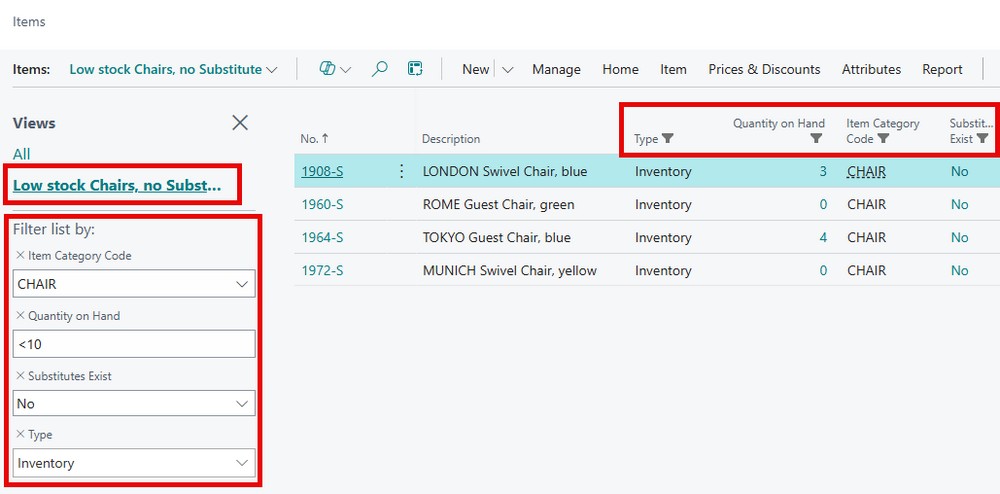
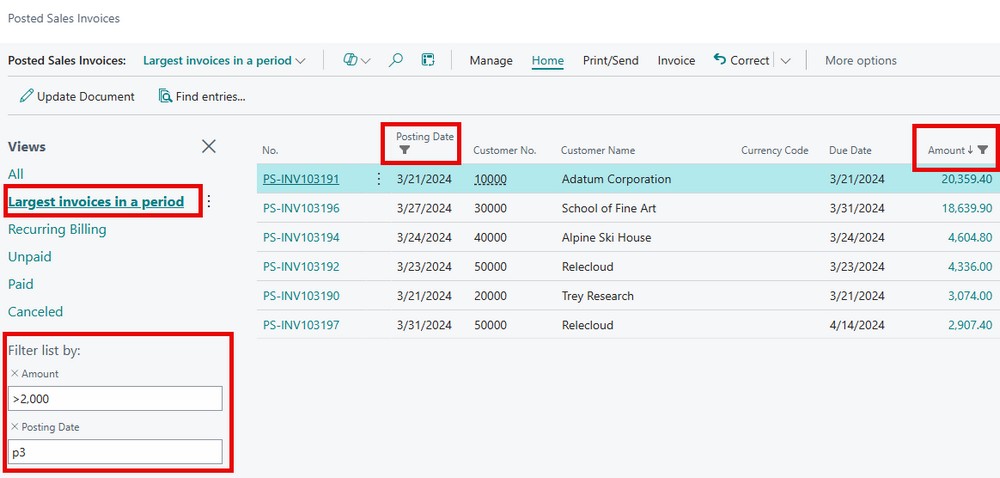
A Filtered View is a saved set of filters on virtually any list page in Business Central, whether it's Items, Posted Sales Invoices, the Chart of Accounts, Customers, Vendors, or just about any other list. Instead of repeatedly applying the same filters, you can save them as a view and access them with a single click. Filtered Views make it easy to quickly find and extract the data you're looking for in real time, whether you're answering a quick question, performing ad hoc analysis, or reviewing the same subset of data on a regular basis.
How do I find them?
Filtered Views are available on virtually every list page in Business Central. Open any list, such as Items, Customers, Vendors, or Posted Sales Invoices, and select the Filter pane (funnel icon) to apply the criteria you want.
Once you have created a filter you expect to use again, use the view selector at the top of the page and choose Save View As. Give the view a meaningful name, and it will appear in the Views pane on the left side of the page for one-click access in the future.
You can create as many personal views as you need, making it easy to organize your work by customer, date range, inventory status, responsibility center, dimensions, or any other combination of filters that help you quickly find the information you need.
Tip: Views can be personal to you or, with the appropriate permissions, shared with other users to provide a consistent way for teams to access commonly used data. Administrators can also build saved views into Profiles so that every user assigned to that profile starts with the same optimized views and workspace experience. This is a great way to standardize processes and make sure users have quick access to the information they need every day.
Filtering the Chart of Accounts
The Chart of Accounts is a list page, too, which means you can filter it the same way you filter Items, Customers, Vendors, or any other list in Business Central. This makes it a simple but powerful way to turn your COA into a real-time reporting tool.
FREE Membership Required to View Full Content:
Joining MSDynamicsWorld.com gives you free, unlimited access to news, analysis, white papers, case studies, product brochures, and more. You can also receive periodic email newsletters with the latest relevant articles and content updates.
Learn more about us here