Dynamics 365 Business Central Reporting Series: Analysis Views
In this series, we have been exploring the reporting options available in Microsoft Dynamics 365 Business Central, starting with the foundational question: how do you choose the right tool? If you missed the earlier articles, you can catch up here:
- Intro Article – Choosing the Right Option
- Article 1 – Standard Analytical Reports
In this third installment, we turn our attention to Analysis Views, a more flexible option that allows users to slice and dice general ledger data across custom dimensions. They give finance teams a powerful way to analyze performance beyond the standard chart of accounts.
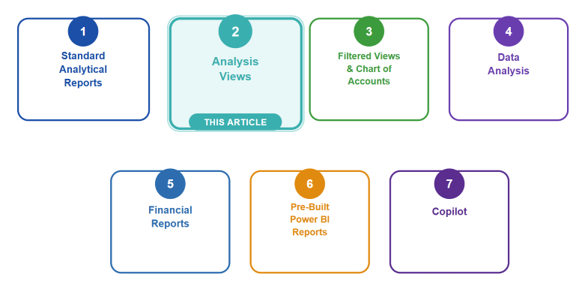
What are they?
First, a clarification: Analysis Views and Data Analysis sound similar, but they are completely different features. Data Analysis is a pivot-style analysis mode you can turn on inside any list, which we will cover in a future article. Analysis Views are a General Ledger-specific feature that lets you define a saved combination of dimensions, accounts, and periods to analyze posted entries. Depending on what you are analyzing and how, there can be some overlap between the two. This article focuses on Analysis Views.
An Analysis View is a saved definition that tells Business Central: Take the General Ledger and let me pivot it by these dimensions. You configure which dimensions, accounts, and date filters to include, and once it is set up, you can return to it any time to slice GL activity by combinations like Department, Location, or Project.
In my experience, many people do not realize Analysis Views exist or how powerful they are. They go well beyond looking at GL accounts in isolation, giving you the ability to cross-reference data in ways that standard reports simply cannot.
How do I find them?
Analysis Views can be accessed in two places:
1. Tell Me/System Search (Alt+Q)
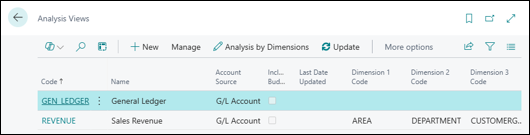
Use the System Search function (the magnifying glass in the top right, or Alt+Q) and type "Analysis Views" to open the Analysis Views list, where you can view existing views or create a new one.
2. Inside a Financial Report
Open the Financial Reports page, select a report, and navigate into the row or column definition. Look for the Analysis View Code field.
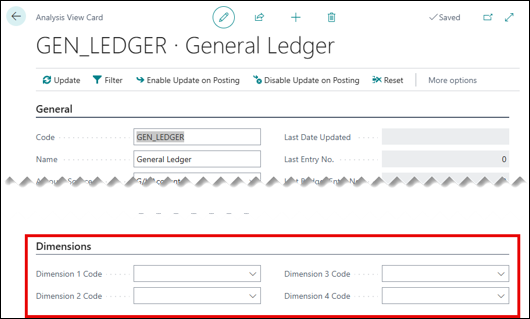
It is also worth noting that Analysis Views need to be updated to reflect the latest posted transactions. You can do this manually by selecting the Update action or by enabling the Update on Posting option on the Analysis View card to have Business Central update automatically each time a related transaction is posted.
When should I use them?
FREE Membership Required to View Full Content:
Joining MSDynamicsWorld.com gives you free, unlimited access to news, analysis, white papers, case studies, product brochures, and more. You can also receive periodic email newsletters with the latest relevant articles and content updates.
Learn more about us here
or
login
FREE Membership Required to View Full Content:
Joining MSDynamicsWorld.com gives you free, unlimited access to news, analysis, white papers, case studies, product brochures, and more. You can also receive periodic email newsletters with the latest relevant articles and content updates.
Learn more about us here