Moving from Quality Management to Quality Inspector in Business Central: A Free PowerTool
FREE Membership Required to View Full Content:
Joining MSDynamicsWorld.com gives you free, unlimited access to news, analysis, white papers, case studies, product brochures, and more. You can also receive periodic email newsletters with the latest relevant articles and content updates.
Learn more about us here
If your company already uses Quality Management in Microsoft Dynamics 365 Business Central, you have setup, templates and inspection history you can keep when you move to Quality Inspector. Quality Management Upgrade PowerTool moves that data in one click, or moves only the inspections and configuration you select. This is a completely free app from Insight Works for Business Central.
In this video
- Run the Assisted Setup wizard to move all of your data: setup, source configurations, templates and inspection documents.
- Use the upgrade reports to migrate only the inspections or configuration you select.
- Refresh data that was already migrated with the "migrate even if already migrated" option.
- Review the results in Quality Inspector.
After you migrate
- Recreate any custom report layouts. Report layouts are not migrated.
- Turn off your Quality Management workflows and turn on the Quality Inspector equivalents.
- Uninstall the PowerTool. Quality Inspector does not need it to run.
Get Quality Management Upgrade PowerTool free on Microsoft Marketplace
Chapters
- 0:00 Introduction
- 1:14 Two ways to migrate
- 1:40 Assisted Setup wizard
- 2:30 Run the upgrade
- 2:47 Results in Quality Inspector
- 3:13 Migrate selected inspections
- 4:20 Migrate configuration only
- 5:08 After you migrate
About Insight Works
Insight Works is a Microsoft Dynamics 365 Business Central ISV (independent software vendor) specializing in warehouse management, manufacturing, and productivity solutions. With a portfolio of apps available on Microsoft Marketplace, Insight Works helps distributors, manufacturers, and wholesalers extend Business Central to fit the way they actually work. Learn more at insight-works.com.
Transcript
Introduction
Hello. In this video, I'm going to show you how to move your data in Dynamics 365 Business Central from Microsoft Quality Management to Insight Works Quality Inspector using the Quality Management Upgrade PowerTool, a free application from Insight Works. The PowerTool provides one-click migration of your data into Quality Inspector.
Business Central's Quality Management is a more basic pared-down version of Quality Inspector. But if you're already using it, your company has the setup templates and inspection history that we can use in Quality Inspector. Quality Inspector adds an ever-expanding list of additional features such as sampling and skip lot, numeric expressions, enhanced NCR support, a phone and tablet interface, and integrations with other Insight Works applications such as Shop Floor Insight and Warehouse Insight.
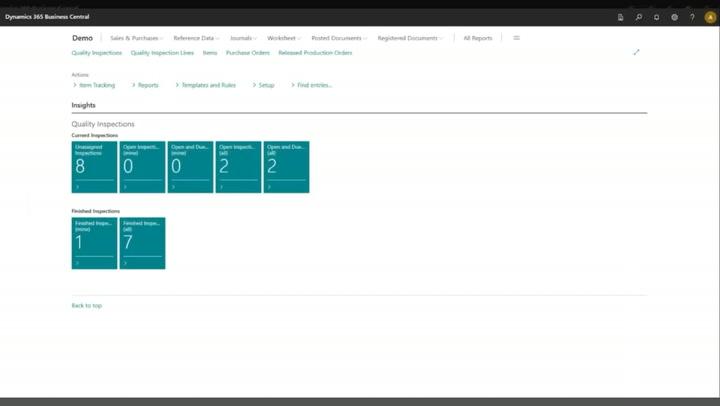
Let's take a look at our data in Quality Management. As we can see, we have a number of templates. We also have some generation rules. We have some quality tests which in Quality Inspector we called fields and we have some quality inspections.
Two ways to migrate
There are two ways that we can run the Quality Management Upgrade PowerTool. Running it via Assisted Setup moves all the Quality Management data. There are also migration reports that we can use to filter our data. So we can just move a single template or a set of inspections instead of moving all of our data. Let's get started. We'll open Assisted Setup.
Assisted Setup wizard
And we'll look at our Upgrade Quality Management to Quality Inspector wizard here. This wizard will first migrate Quality Management configuration such as the setup source configurations and templates and then the inspection documents.
Existing Quality Inspector configuration will be left unchanged unless we choose to migrate even if already migrated. In that way we could refresh existing Quality Inspector data from Quality Management.
One thing to note is that report layouts are not migrated between Quality Management and Quality Inspector. So if we have any custom report layouts, we'll need to recreate them in Quality Inspector. Let's select upgrade.
Run the upgrade
As we can see, the setup was migrated. Some source configurations and some templates were also migrated as well as our nine inspections. I'm going to switch to the Quality Inspector role and then we can see what we brought in.
Results in Quality Inspector
Now that we're in the Quality Inspector role, we can take a look at our test templates and see they've all been migrated. We can see our fields have also come in as well. Our Quality Management inspections have come into our quality inspection tests.
Migrate selected inspections
That's how easy it is to move all of your data. Next, I'm going to come back to a refreshed company that doesn't have any Quality Inspector data, and we can look at using the reports when you only want to migrate part of your data. Now, we're back in our refreshed company. We can see that there aren't any test templates, nor are there any quality inspection tests.
Let's use the reports to move some of the data. So if we search quality upgrade and go to the Upgrade Quality Management Inspections to Quality Inspector report, we can use this to migrate a subset of our quality inspections. Note this will also bring in any templates, generation rules, fields, grades, or lookup values that we need for that test.
I'm just going to filter to a single inspection and select okay. As we can see, we've brought one in which we can see here. Along with that, of course, it's brought in the associated template and the associated fields.
Migrate configuration only
Now, let's run the other report. This Quality Management Configuration to Quality Inspector Migration report will migrate the setup source configurations and templates. This is especially valuable if you have templates that are not associated with any inspections as they would not be captured by the previous report. Let's select okay.
As we can see because we didn't have any setup in the system currently, we've moved the setup. We've also moved source configurations and our eight templates. If we look, we can see the eight templates here along with the associated fields.
After you migrate
There are two things that we should do after we've migrated this data. First, we should recreate any custom report layouts in Quality Inspector. And second, if our company had Business Central workflows for Quality Management, we'd also want to disable those and enable Quality Inspector equivalents.
When you're done, you can uninstall the PowerTool because Quality Inspector doesn't need it to run. And that's just how easy it is to migrate your data to Quality Inspector.

Insight Works is a leading Independent Software Vendor (ISV) dedicated to creating apps exclusively for Microsoft Dynamics 365 Business Central.