Prevent Order Entry Errors in Business Central with Guided Sales Tools
In many counter-based sales environments—such as trade desks, parts counters, and small outlet stores—frontline staff operate under constant pressure. Phones are ringing. Walk-in customers are waiting. Inventory is tight. The margin for error is thin.
And yet, Business Central users in these environments are often left to fumble through standard sales order pages that weren’t built for speed, context, or front-counter accuracy. What happens?
- Incorrect customer selections
- Wrong item variants
- Inconsistent pricing
- Missing payments
- Lost sales entirely
Mistakes like these not only waste time but also directly impact cash flow, customer satisfaction, and inventory integrity.
Listen To The Podcast
A Common Day at the Counter (and How It Goes Sideways)
Imagine this: a walk-in customer asks for “LS-2 cables.” The counter rep types it into the sales order manually. There’s no context on price, inventory, or even who the customer is. Multiply that by 30 transactions a day, and the opportunity for error—and frustration—grows.
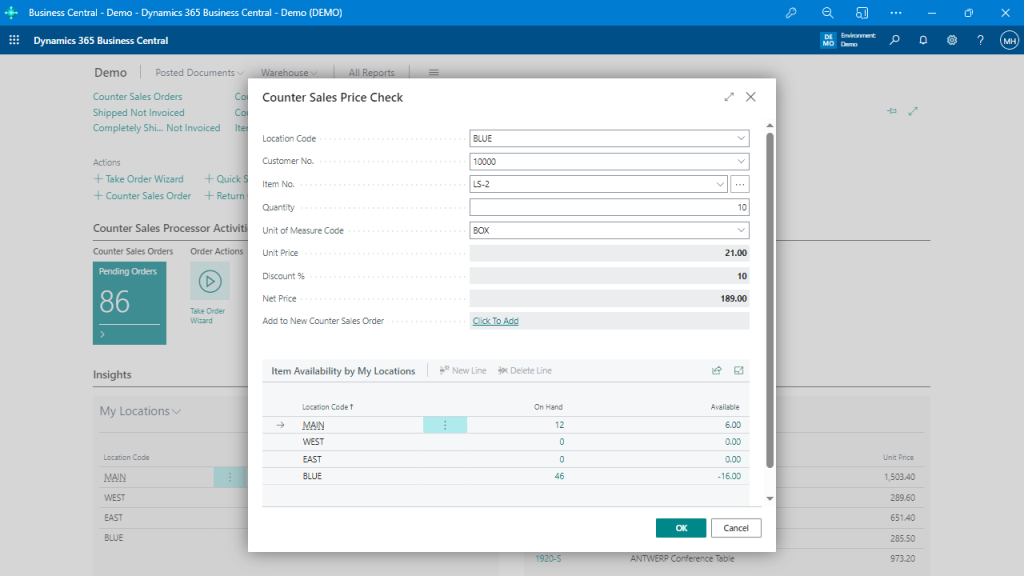
This image illustrates a typical price check scenario where the rep might forget to apply the right customer, discount, or location—all of which affect pricing and availability.
If the rep doesn’t pick the correct customer record, prices may default incorrectly. If the wrong location is selected, stock looks unavailable when it’s actually in the building. And if the rep forgets to apply a discount, someone’s calling back angry.
Even barcode scanners don’t save the day if they’re not paired with logic. You might scan in cables and a power supply—but did the system prompt you for a matching power cord like others usually buy?
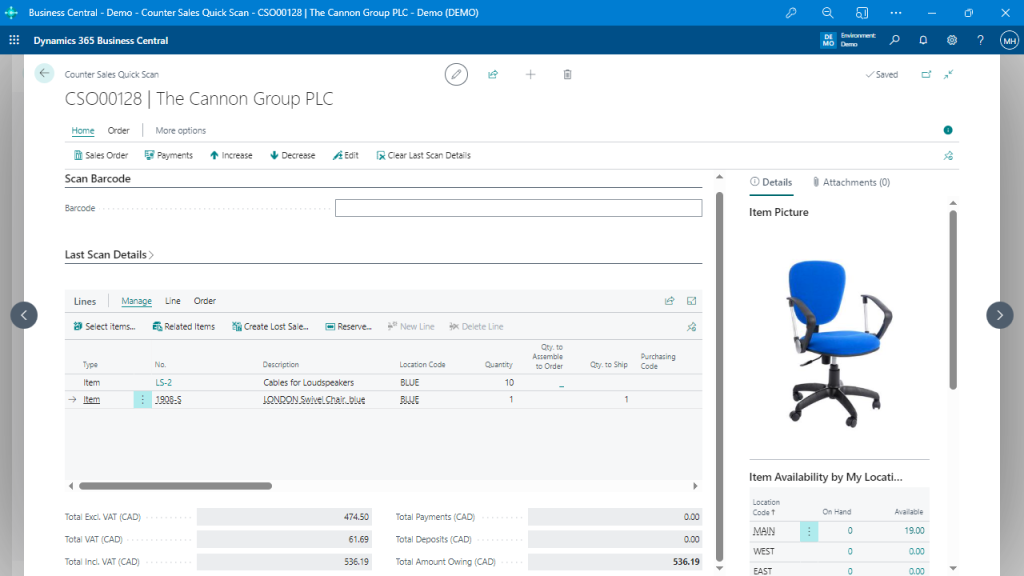
This screenshot illustrates Quick Scan mode in action—ideal for fast, high-volume environments, but prone to gaps if workflows aren't structured.

The Real Problem: Business Central Alone Isn't Built for Trade Counter Chaos
Business Central’s sales order screens are powerful, but they’re not optimized for walk-in, cash-and-carry environments. There’s no:
- Easy way to search by phone number or contact
- Logic to guide order creation
- Guardrails to prevent salespeople from skipping steps or misapplying discounts
- Role-specific screens for fast-moving counter staff
That’s not a flaw in Business Central—it was simply not designed with the parts counter in mind.
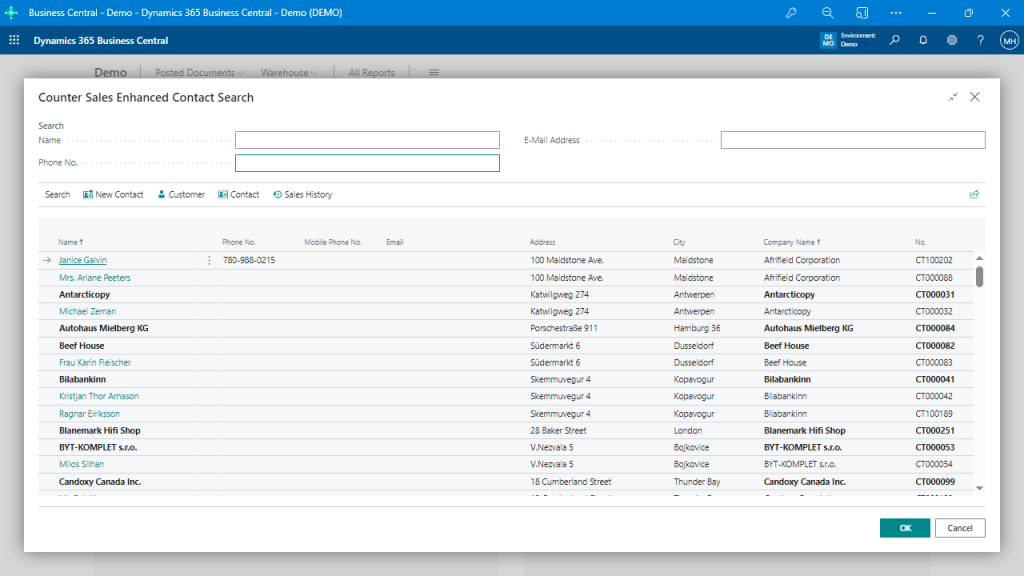
This is the kind of enhanced contact lookup tool that helps avoid typing errors and ensures the right customer is selected—by phone, name, or email.

What Guided Sales Tools Should Look Like
Counter staff need tools that adapt to them—not the other way around. Here’s what that looks like in practice:
- Take Order Wizard: A structured, repeatable process that walks staff through finding or creating the right customer, confirming location, and entering the right item—with pricing logic baked in.
- Quick Scan Mode: For cash-and-carry sales, staff should be able to beep-beep-beep items into the system, apply payments, and complete the transaction—no excessive clicking.
- Context-Aware Pricing and Discount Control: The system should recognize the customer, their location, and determine which pricing or discount rules apply.
- Item Search that Actually Works: Typing “front wheel” should display any matching items, regardless of word order, and allow filters such as color, material, or size—not just the exact description.
- Lost Sale Tracking: If someone walks away without making a purchase, staff should be able to log the reason quickly, such as being out of stock, the price being too high, or simply browsing. That’s valuable data, not a lost opportunity.
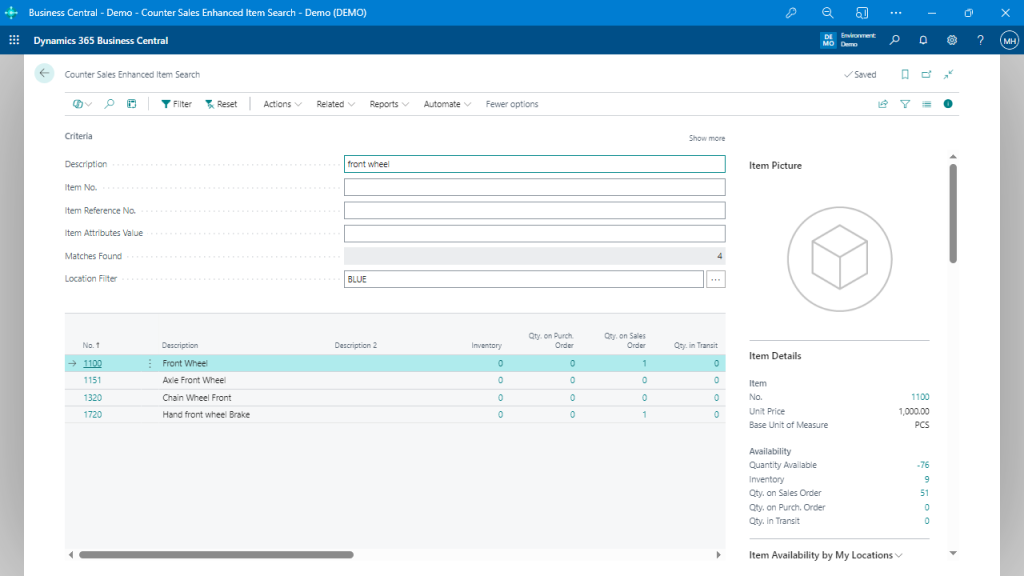
This screenshot shows a flexible item search that doesn't rely on perfect text matches—ideal for parts counters juggling inconsistent vendor descriptions.

Why This Matters
If your team spends time cleaning up incorrect sales orders, issuing credits, or fielding complaints because a front-counter sale went sideways, you’re not alone. However, those aren’t just process issues—they’re signals that your system needs to work more effectively for the people on the front lines.
That’s where guided tools make a difference: not by replacing your ERP, but by enhancing it where it struggles.
How to Make It Happen in Business Central
One way to bring these guided workflows to life is with the Counter Sales app from Insight Works. It introduces intuitive wizards, barcode-based quick sales, price override controls, and intelligent item search directly into Business Central—without needing a separate POS system.
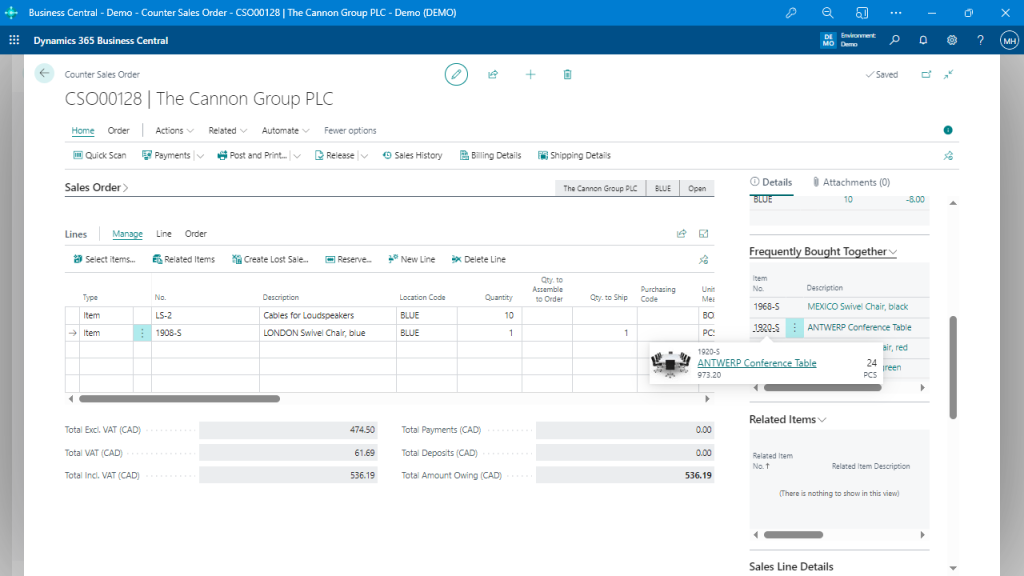
Shows a structured sales order screen that incorporates frequently bought suggestions and related items for upselling.

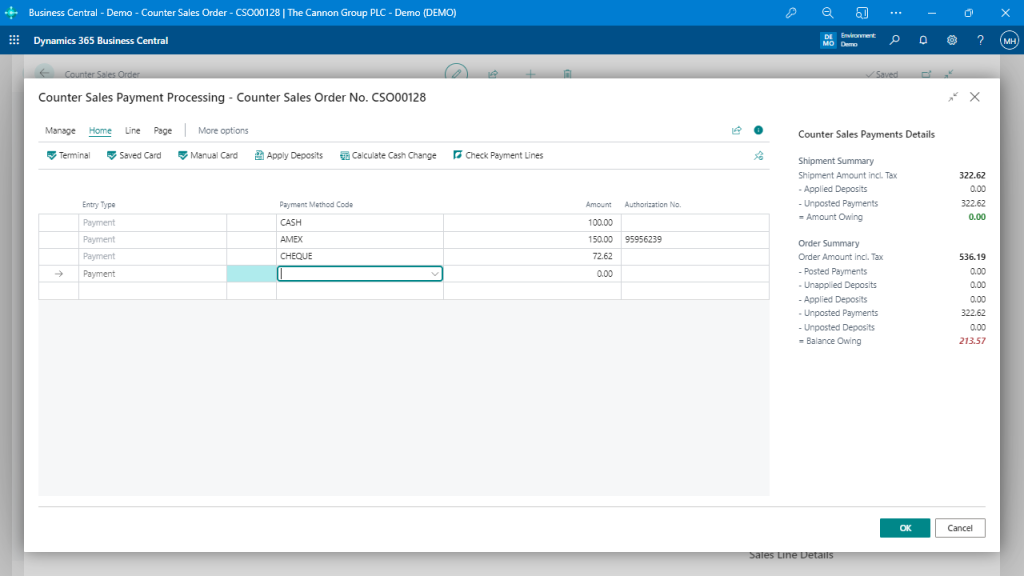
This payment screen demonstrates how deposits, cards, cash, and refunds can all be managed within a single interface.

For organizations that rely on walk-in or phone-based sales, it’s a way to get more from Business Central—without asking frontline staff to become ERP experts.
Learn more at POSfoDynamics.com or reach out to your Microsoft Partner.