Best Practices for Barcode Scanning in Business Central: How to Ensure Readability and Accuracy
When working with barcode scanning in Business Central, it’s not enough to generate barcodes—they need to scan flawlessly. Whether you’re printing product labels, warehouse documents, or invoices, unreadable barcodes mean wasted time and frustrated users.
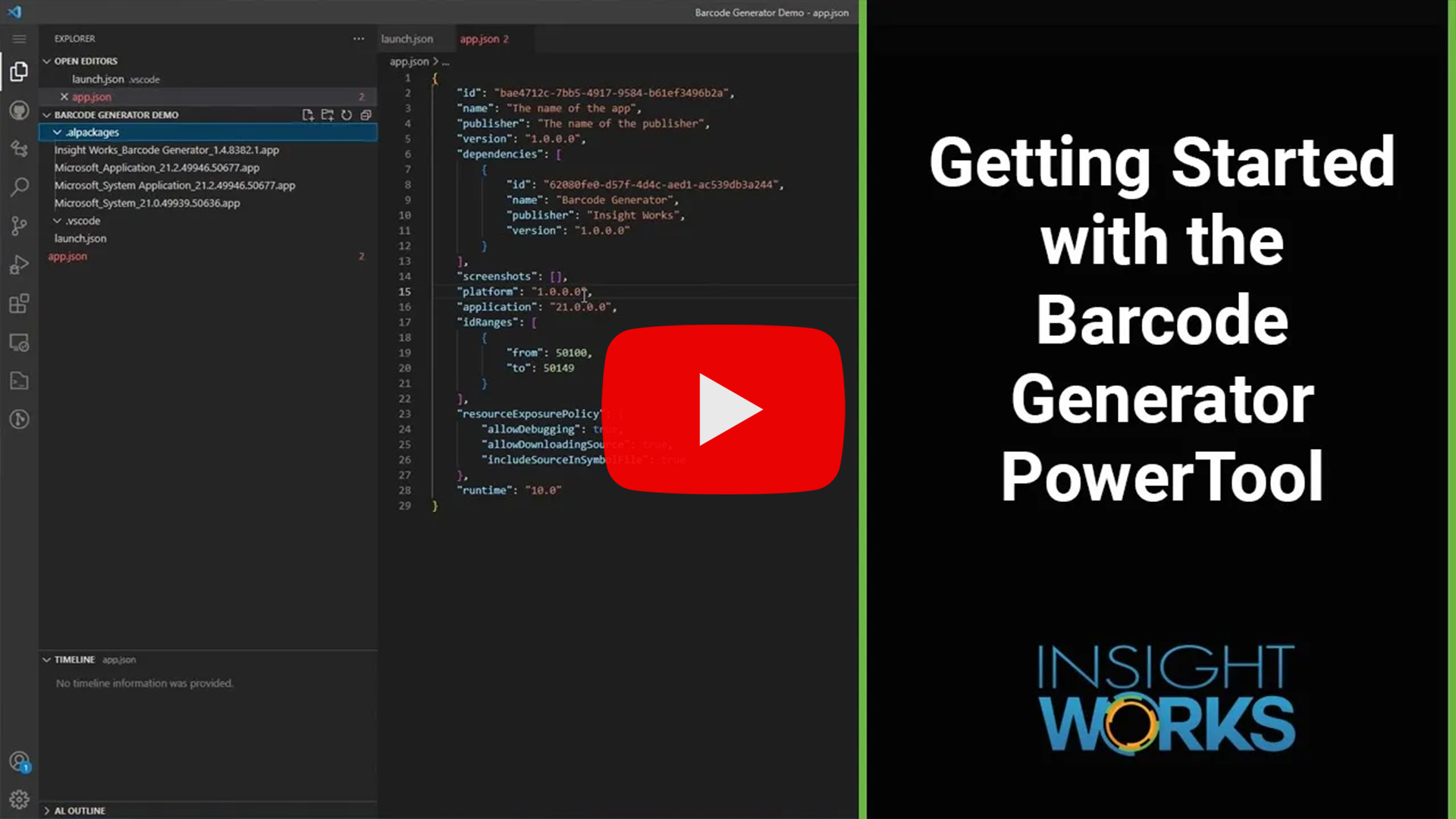
Using the free Barcode Generator PowerTool app from Insight Works, add 1D and 2D barcodes to your Microsoft Dynamics 365 Business Central reports. But to make sure those barcodes scan every time, you’ll want to follow a few key best practices around barcode size, format, and placement.
Let’s break down what you need to know.
1. Choose the Right Barcode Format for the Job
Different use cases call for different barcode types. Here are the most common options supported by the Barcode Generator PowerTool and when to use them:
- Code 39 (1D) – Great for basic alphanumeric data (e.g., item or bin numbers). Minimal formatting needs.
- Code 128 / GS1-128 (1D) – Ideal for encoding structured data like shipping details, lot numbers, or compliance data.
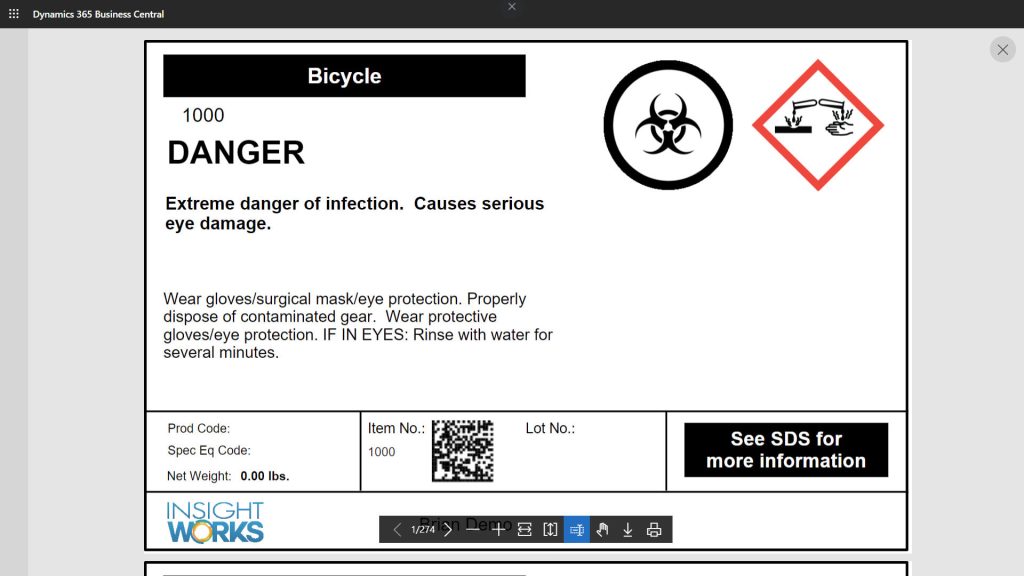
- Data Matrix (2D) – Compact and perfect for small labels or encoding large amounts of data.
- QR Code (2D) – Useful for linking to URLs, instructions, or product details. It scans well, even with some distortion.
Tip: Don’t default to QR codes just because they look modern—ensure the scanner and process flow support them.
2. Get the Size Right: Small Labels, Big Impact
Scanners need enough resolution to read the barcode accurately. If it’s too small, it won’t scan—too large and may not fit your layout.
Here’s a general guide:
Format
Recommended Minimum Size
Code 39
0.3″ tall, 1.5″ wide (varies)
Data Matrix
10×10 modules minimum
QR Code
Dot size of 2–4 (4 = better resolution)
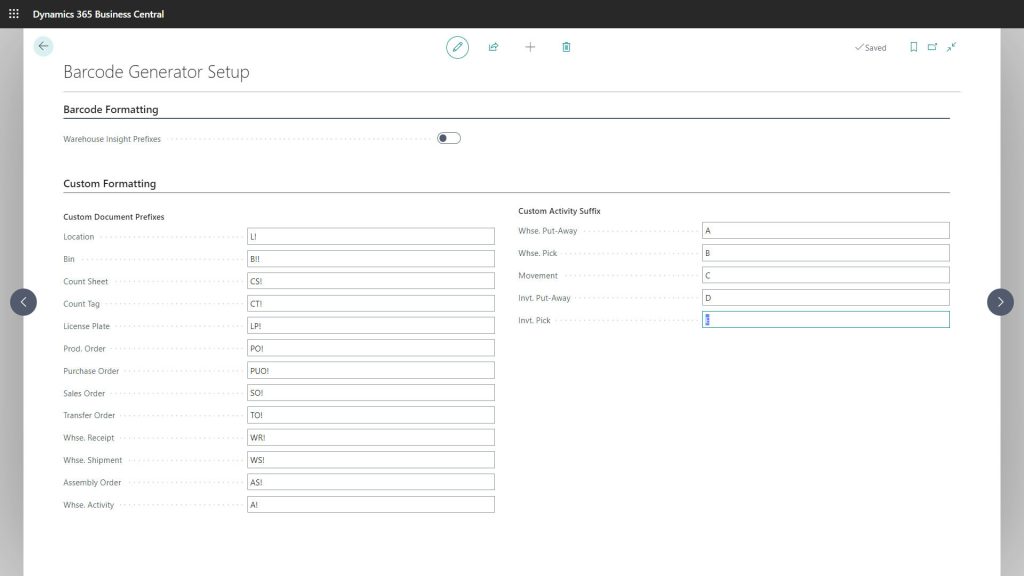
With the Barcode Generator PowerTool, you control size via function parameters:
BarcodeGenerator.GenerateQRBarcode(Barcode, SalesLine.”No.”, 4);
In this case, 4 sets a more readable size than the default 2.
Best practice: Use a test report like Barcode Generation (23044800) to experiment with different settings before deploying in live reports.
3. Place Barcodes Smartly in Report Layouts
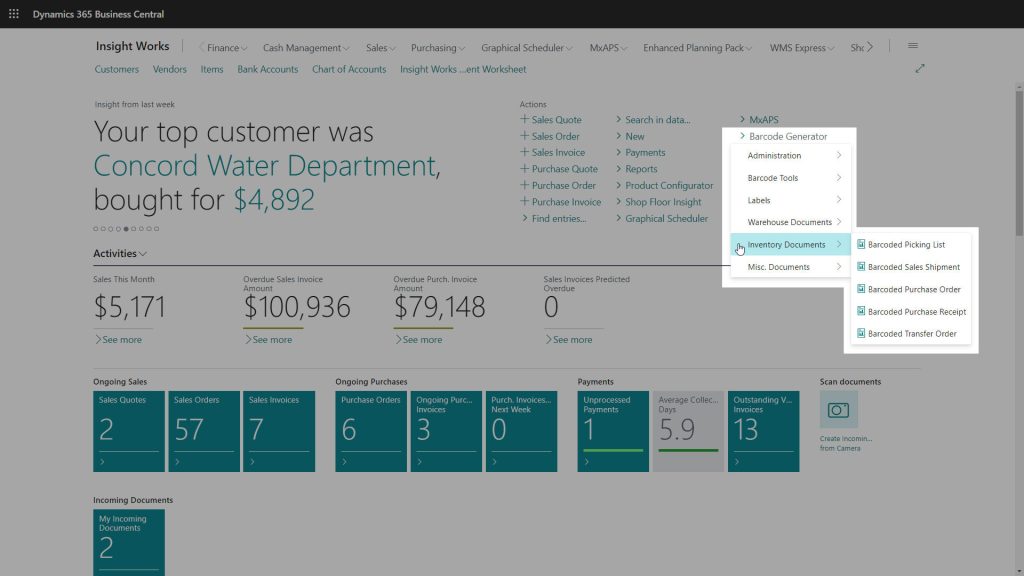
Where and how you place the barcode in your report matters. Crowded layouts or improperly sized containers can distort the image.
In Microsoft Report Builder, set the image properties like this:
- Source: Database
- MIME Type: image/bmp
- Sizing: Original Size (preferred) or Fit Proportional
Why not clip or stretch? Barcodes need their proportions intact—distorted images mean failed scans. Leave ample white space around each barcode.
4. Use Built-In Sample Reports to Save Time
Don’t reinvent the wheel. Barcode Generator PowerTool comes with sample reports like:
- Generic Item Barcode Label (23044801)
- Generic Bin Label (23044802)
- Warehouse Receipt with Barcode (23044810)
These give you real-world layout examples that follow proper sizing and placement rules. Modify them to suit your needs.
5. Test Scans Before Going Live
Before rolling out any barcode-enabled report, print a few samples and test them with your actual scanning hardware. Check for:
- Scan speed
- Error rate
- Environmental readability (glare, smudges, label material)
If using mobile devices with Warehouse Insight or WMS Express, test those apps specifically.
Final Thoughts
Barcode readability isn’t about generating an image but building an efficient, error-free workflow. With the Barcode Generator PowerTool and these best practices, your Business Central reports deliver scannable, accurate data every time.
Need help getting started? Use the Barcode Generator demo report to test your layout ideas, or check out the Knowledge Base for sample code and documentation.
LEARN ABOUT BARCODE GENERATOR POWERTOOL