It's Budget Season, Part 2: Reporting on Budgets in Dynamics 365 Business Central and the Landmines Nobody Warns You About
In Part 1 of this series, I walked through the setup that has to happen before you build a G/L Budget in Dynamics 365 Business Central, the build-populate-import-validate workflow itself, and how to base a new budget on a prior year or on actuals instead of starting from a blank sheet. If you haven't built the budget yet, start there — everything in this article assumes you've already got a Budget Name with entries in it.
This article is about what happens next: getting that budget in front of people as an actual-vs-budget comparison, reporting on more than one budget at once, and three specific mistakes that generate more support calls than anything else related to this feature. If you take away nothing else from this piece, take away the three landmines below.
Reporting Budget vs. Actual
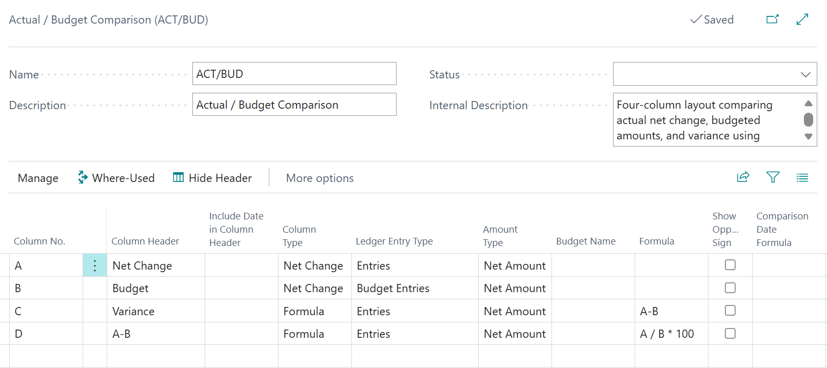
Business Central provides several ways to compare actual amounts with a G/L budget. From the Chart of Accounts, G/L Balance/Budget provides a quick on-screen comparison of actual and budgeted amounts by account for a selected period. To review one account across multiple periods, select the account and open G/L Account Balance/Budget.
For a standard printed comparison, the Trial Balance/Budget report shows net change and balances compared with budget. When the goal is a management-ready income statement with selected rows, subtotals, actual, budget, variance, and percentage columns, use a Financial Report with the appropriate Row Definition and Column Definition.
Can a Report Reference More Than One Budget?
Yes. A Financial Report can reference more than one budget, and Business Central provides two different ways to do it.
The run-time G/L Budget Filter on the Financial Report options page is a Business Central filter field. You can enter one Budget Name or use a filter expression to select multiple Budget Names to apply at the report level. Use this approach when the selected budgets are intended to be included together in the report results.
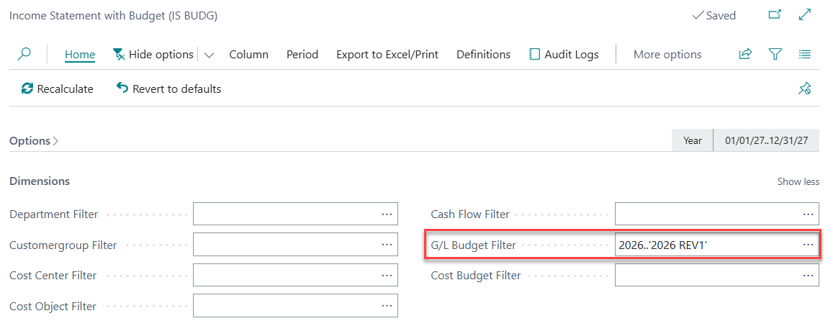
To show budgets separately, use the Budget Name field on individual lines in the Column Definition. The field is available when the column's Ledger Entry Type is set to Budget Entries. You can build a report in which one column pulls from the original budget, another pulls from a revision or forecast, and a formula column compares them. The report-level filter is for the budget selection that applies to the report; the column-level Budget Name is what supports distinct budget columns in the same report.
Three Landmines Worth Knowing About Before They Find You
Landmine #1: The Date Filter Defaults to "Now," Not to Your Budget's Year
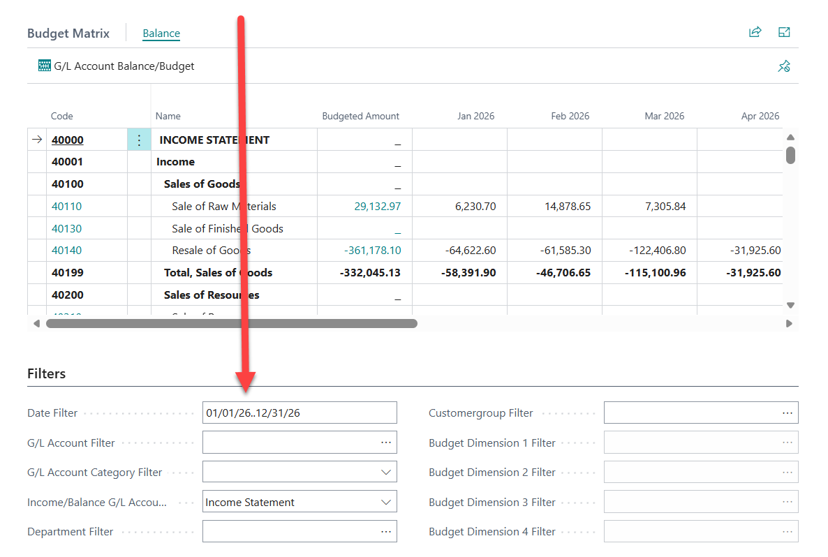
This is, hands down, the single most common troubleshooting call I get on budgets. Someone builds a budget named 2027, comes back to look at it, and swears the numbers are missing or wrong. They aren't.
FREE Membership Required to View Full Content:
Joining MSDynamicsWorld.com gives you free, unlimited access to news, analysis, white papers, case studies, product brochures, and more. You can also receive periodic email newsletters with the latest relevant articles and content updates.
Learn more about us here