Bank Reconciliation Using Copilot in Business Central
Identifying and matching bank transactions is essential for keeping your bank records up to date and ensuring that what's in your books matches the statements you receive from your bank. Bank reconciliation is an important task, but it can sometimes be time-consuming and tedious. What if we told you there is a way to eliminate extra clicks in this process and introduce automation?
We incorporate artificial intelligence into our daily tasks and processes more each day. As AI continues to develop, tasks such as bank reconciliation become simpler and faster to perform with tools like Copilot in Business Central. Many Business Central end-users choose the Copilot tool to do their reconciliation over the other Business Central bank reconciliation options for two reasons:
- Copilot will get smarter and improve with continued use, recalling previous reconciliations and adapting better to your financial processes.
- One-step process to post missing or not cleared transactions to the general ledger.
Interested in learning more about Machine Learning and how it works? Our AI technology catalog is a great place to gain baseline knowledge to further incorporate AI into your business processes. Without further ado, let's dive into the process of using Copilot in Business Central for your Bank Reconciliation process.
Importing bank statement lines
First, start your bank reconciliation process as usual and import your bank statement. If you don't have automatic bank statement import set up, enable it as soon as possible by adding your bank account to the system. It will save you a bunch of time by automatically importing your bank statement, rather than requiring you to download a .csv file. If you are unfamiliar with this process, Microsoft's documentation will walk you through setting up your bank accounts and linking them to Business Central.
Using Copilot to reconcile
Once you have the bank statement lines imported, click the Copilot icon in the top-right corner and select "Reconcile".
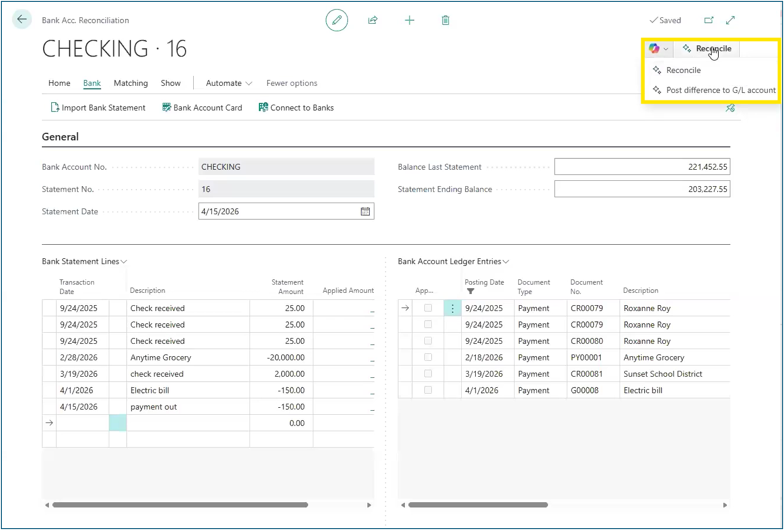
The Copilot reconcile tool in Business Central.
Copilot will then work its magic and match your transactions. If there are any matching issues, a window will display a link showing how many lines were automatically matched, and below that, items will be flagged in the 'Match proposal' window for you to accept or reject potential matches.
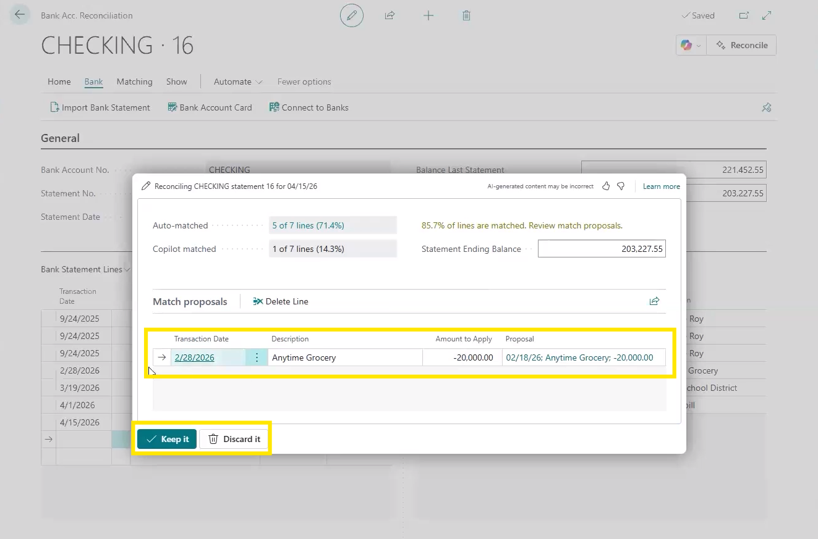
The window pops up when a discrepancy occurs during the reconciliation process.
If you discard it, then nothing will reconcile, and you will need to find and make the necessary adjustment to match the transaction yourself. If you select "keep it," the proposed changes will be accepted, and everything will reconcile as planned if there are no further discrepancies.
The Reconciliation window
The bank statement lines on your page will turn green once your transactions have been reconciled. That is one way to know the process has been completed properly. If, for some reason, the line did not change to green, the transaction was not matched and will need further investigation.
If you have fees, interest, or any other discrepancy that doesn't match, but know the bank statement is correct, you can assign a G/L account to the discrepancy and post the changes with your reconciliation using Copilot.
- Click the Copilot icon in the top-right corner of the screen
- Click "Choose G/L account" in the pop-up window, then specify the G/L account you want
- You can enter a more detailed description in the description field. Then, select "Post difference to G/L account"
- Select "Keep it"
Once all the lines in your reconciliation are green and completed, you can move forward with posting.
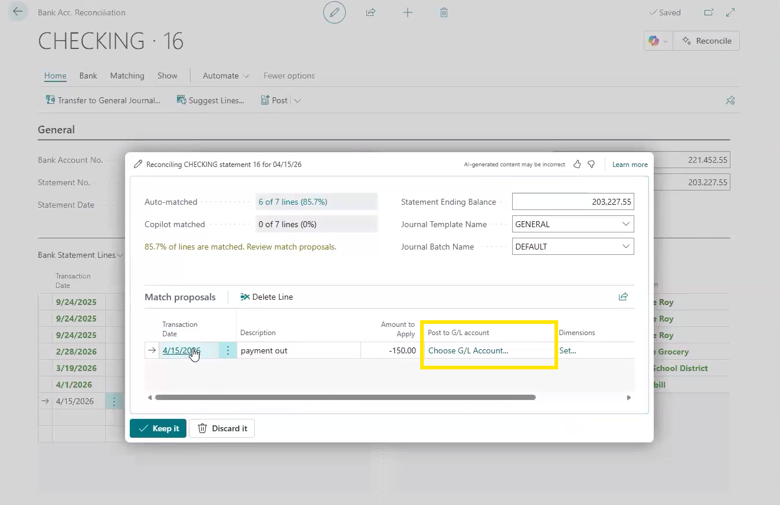
Choosing a G/L account for transactions in Business Central
Using Copilot in your business processes
Using Copilot in Business Central allows you to complete the bank reconciliation process with fewer clicks and greater efficiency. As mentioned earlier, machine learning continues to be explored and incorporated into daily business processes, and the more you use this tool, the smarter and more effective it will become at completing these tasks.
If you are new to bank reconciliations in Business Central and would like to see these steps in action, then be sure to check out our free training video where we walk through this process from beginning to end in a quick, easy-to-follow demo.
Looking for more support or information on Business Central or using Artificial Intelligence in your business? Then don't hesitate to reach out to the Syvantis team!