It's Budget Season, Part 1: Building G/L Budgets in Dynamics 365 Business Central the Right Way
If your inbox looks anything like mine right now, "budget season" isn't a metaphor — it's a calendar entry with a deadline attached. Every year, finance teams sit down to build next year's numbers, and every year, someone on the Business Central side asks the same question: "Wait, how does this actually work?"
G/L Budgets in Business Central are deceptively simple on the surface — create a name, type in some numbers, done. But the feature has more moving parts than the base UI lets on, and most of the pain I see in client engagements doesn't come from the budgeting screen itself. It comes from what happens before you start (setup you skipped) and after you're done (reporting decisions nobody documented).
This is a two-part series. Part 1 (this article) covers the critical setup activities, building and maintaining the budget itself, and basing a new budget on a prior one or on actuals. Part 2 covers the reporting side: how to compare a budget to actuals, how to report on more than one budget at once, and three specific landmines that generate more support calls than anything else in this feature.
Before You Touch G/L Budgets: Setup That Has to Come First
Budgets don't exist in a vacuum. Before you create your first Budget Name, make sure the following are already in place:
- Accounting Periods only matter if you plan to view or report a budget by accounting period. Business Central supports both period-based and plain date-based budgeting — Month, Quarter, and Year views work without Accounting Periods being defined in advance. If you specifically set View By to Accounting Period, though, those periods have to already exist, or you won't see what you expect.
- Dimensions and dimension values already exist for whatever you plan to budget by — Department, Fund, Location, whatever your organization tracks. You can't filter or populate by a dimension value that doesn't exist yet.
- Global Dimensions 1 and 2 are confirmed on General Ledger Setup. These are expensive to change later, so if the dimension you most want to slice budgets by isn't already a Global Dimension, decide now whether it needs to ride along as one of the four additional Budget Dimensions instead.
- G/L Account Categories is assigned, if you want budget-vs-actual reports to total cleanly by category.
- Income Statement vs. Balance Sheet classification is set correctly on every account card. The G/L Budget matrix filters to Income Statement accounts by default, and that filter is doing exactly what it's supposed to. But if someone added a new revenue or expense account and forgot to flag it as an Income Statement account, it simply won't show up in the budget for anyone to budget against. No error, no missing-account warning. It just isn't there.
Skipping this step is the single most common reason a budget "doesn't look right" once it's imported — the numbers are fine, the dimension structure (or the chart of accounts setup underneath it) isn't.
Building the Budget: Template, Populate, Import, Validate
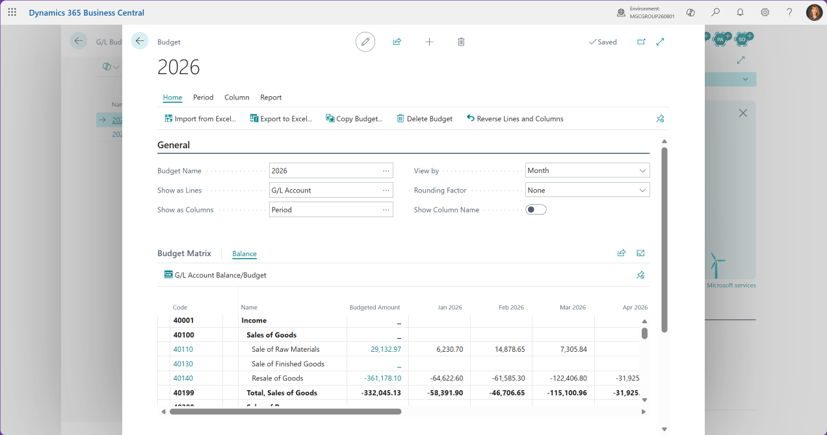
Once the groundwork is in place, the workflow is straightforward:
- Create the Budget Name. Keep it short and purposeful — the field allows only 10 characters — and give it a real naming convention, not just "2027." You'll thank yourself later — more on that below.
- Export to Excel to generate your working template. This is where you set your date range, period length, and — critically — your Column Dimensions if you want the template pre-built by department, fund, or whatever else you're slicing by.
- Populate the template. Fill in amounts by account, period, and dimension combination. If an account needs to be split across multiple dimension values, duplicate the line rather than trying to force two values onto one row. Mind your debit/credit signs here — revenue goes in as a negative (credit) value, expenses as positive (debit). Get this backwards and your comparative reports will look wrong in ways that are easy to misdiagnose; we will cover exactly why in Part 2.
FREE Membership Required to View Full Content:
Joining MSDynamicsWorld.com gives you free, unlimited access to news, analysis, white papers, case studies, product brochures, and more. You can also receive periodic email newsletters with the latest relevant articles and content updates.
Learn more about us hereor login