Importing static lists to segments in Customer Insights – Journeys
Customer Insights – Journeys got a major upgrade for building out your audience segments! Instead of the long and tedious process of using the query to create your audience list, you can now directly upload a static contact or leads list into Customer Insights – Journeys using a CSV file to create a segment.
This new update will be particularly helpful in scenarios where your target audience members do not share a specific attribute that would let you group members, or if you received this target list from a tradeshow or another third-party source, and don’t plan on having the list change at all, leaving it as a static segment.
On the other hand, let’s say you want to build a typical dynamic segment that automatically updates with new members based on the criteria you set, but you either want your static audience list to be included or excluded from your journey, no matter what the criteria are set to. This feature gives you the level of control needed to make this possible. Let’s break down how this all works!
Breaking down this feature
So, to start things off, let's discuss the ins and outs of this function. Simply put, you can fill out an Excel spreadsheet listing the contacts you want to include or exclude from your audience segment. Once uploaded to Customer Insights – Journeys, the system will scan the CSV file and attempt to match the fields in your spreadsheet to records in Dataverse, adding them to your segment. The contacts and leads in your lists must already be created and live in CRM for the system to pull them from Dataverse.
Dataverse is the part of your CRM system where all of your Dynamics 365 information is stored, including Sales, Customer Service, Field Service, Customer Insights – Journeys, Business Central, and Power Apps.
Records in your spreadsheet that are not matched in the system will be sent back to you as a "not found list" CSV file. Usually, the record cannot be matched either because there is a typo somewhere in your spreadsheet or because the contact does not yet exist in your CRM system. You will then be able to either remove the record altogether or refine the spreadsheet and resubmit it so the system can try to find a match.
When to use
As mentioned earlier, importing a static list into your segments is very useful for the following use cases:
- Event lists
- Unique audience attributes or traits
- Exclusion lists
It is also worth noting that this feature will only allow you to upload up to 200,000 records to an audience segment.
Using this feature
Now that we have a good understanding of how this feature works, let's walk through using it!
Creating your CSV file
Before you upload your audience records to Customer Insights – Journeys, make sure your CSV file is clean and easy for the system to read.
In a new spreadsheet, title the first three columns First Name, Last Name, and email, and fill out each of the rows below with the corresponding information for that contact or lead you want to be added to your static list.
These three columns are the minimum required to match existing records, and, as the example below shows, you can add additional data columns if needed. Additional data columns will match corresponding fields on your contact or lead records. If you would like to adjust CRM's contact/lead matching strategies, you can have your system administrator review and adjust the rules and matching conditions in your settings to ensure that the system can properly match each record in Dataverse.
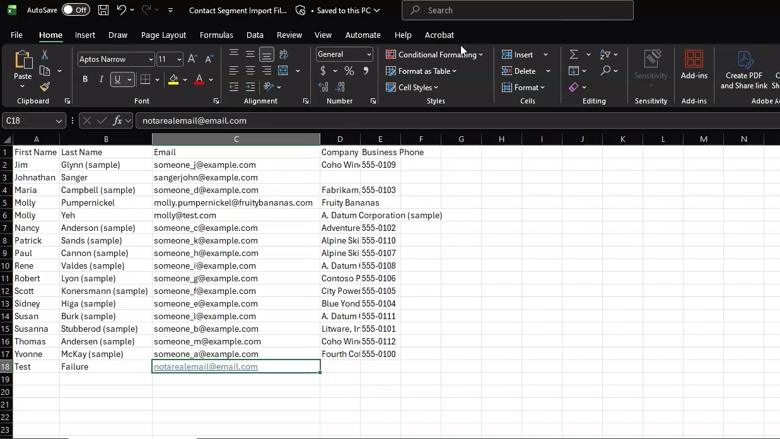
Image of: Spreadsheet containing records being uploaded to Customer Insights – Journeys segments
Importing records to your segment
Once your spreadsheet is ready, create a new segment. You’ll have the option to either drag and drop the CSV file into the interface or upload it.
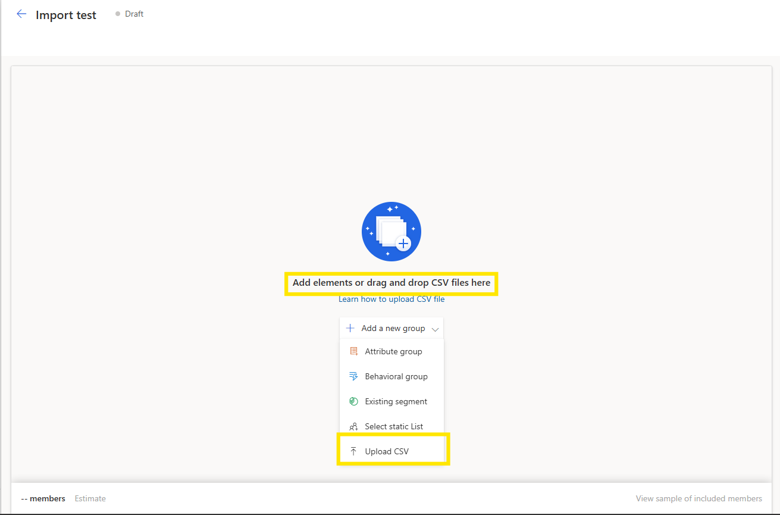
Image of: The segment builder in Customer Insights – Journeys
The system will then begin matching the rows in your spreadsheet to your Dataverse records and pulling the correct audience into your segment. Customer Insights - Journeys will not create any contacts from records that did not have a match. There must already be a contact or lead record in your CRM system for them to be added to your segments. As mentioned earlier, it will instead give you the "not found list" to download, review, and make the necessary adjustments.
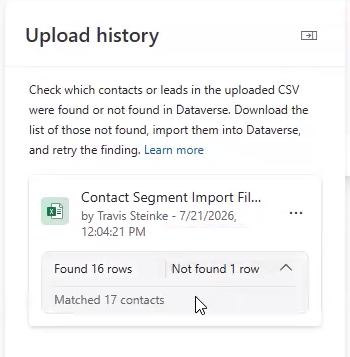
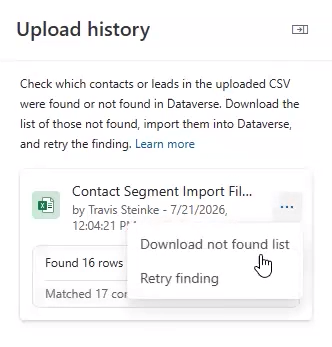
Image of: The static list matching information in the segment builder
If Customer Insights – Journeys matched more contacts than there were rows in your spreadsheet, there were likely duplicates. We recommend enabling the Deduplication rule in Customer Insights – Journeys as an extra safeguard. If, for some reason, you missed the duplicate and attempted to use this segment in a journey, the system will catch it and send only one email instead of a duplicate. You can adjust this in the system settings, but it is still important to be aware of potential duplicates to keep your records clean and organized.
Duplicate records should either be merged or deleted.
Now that your static lists have been properly imported and you’ve done all the duplicate and matching checks, it’s time to finalize your segment.
In the segment builder, set the inclusion and exclusion preferences, and add any additional groups that you would like to target. These final steps are crucial because, as we mentioned earlier, regardless of what else you add to the segment, the include/exclude option bypasses all other rules. Meaning: if you turn this into a dynamic segment and add another group to include everyone who lives in Minnesota, the contacts from your CSV file will be included or excluded based on your selection, regardless of where they live.
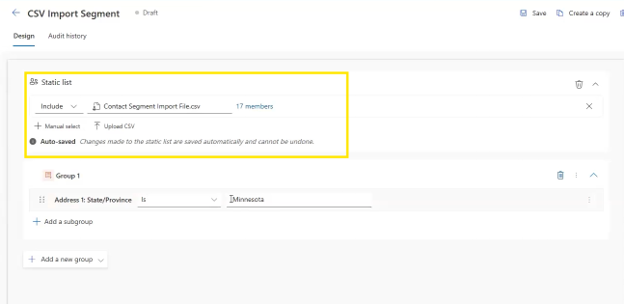
Image of: Your static list include/exclude option in the segment builder of Customer Insights - Journeys
After that, your static list has been imported into your segment, and you are ready to send your marketing material on its journey to your audience.
Importing static lists from CSV files into your segments is very helpful for quickly and easily building an audience segment ready to use in a marketing journey. No need for extra clicks or configuration; it can be as simple as an upload-and-go, or as thorough as uploading and adding rules to refine your audience further.
If you could use extra support with all things Customer Insights - Journeys—from strategy consulting and user training to building segments and journeys, reach out to our team and take advantage of our marketing expertise.