How a US Retailer Fixed Their Broken Pipeline with a Kanban Board for Dynamics 365 CRM
A real-world look at how an American retail sales team is using Kanban view in Dynamics 365 CRM to visualize pipelines, manage Kanban lanes, and close deals faster - all without leaving CRM.
Picture a regional retail chain headquartered in Dallas, Texas.
- 15 account executives.
- hundreds of active deals.
- and one shared spreadsheet everyone hated.
The company was already using Dynamics 365, but only as a contact database - not as a true sales pipeline tool.
No visual pipeline. No quick way to see what was blocked.
That changed when they implemented Kanban Board for Dynamics 365 CRM – a Microsoft Marketplace certified CRM Data visualization and Pipeline Management solution.
The Problem: Dynamics 365 Without a Visual Pipeline
Dynamics 365 CRM is powerful, but its default list view shows records as rows in a grid. For a retail team juggling dozens of active accounts, it offers no at-a-glance pipeline insight.
Sales manager Jamie put it plainly: "I had to open five records just to answer one question in stand-up. Nobody knew what was blocked or what needed a call today."
What Jamie needed was a Kanban view in Dynamics 365 CRM - one that lived inside CRM they already used, with no new logins or data sync headaches.
Why Traditional CRM Views Slow Sales Teams Down
Most CRM systems display opportunities in rows and tables. While functional, these views make it difficult to:
- identify stalled deals
- prioritize follow-ups
- visualize pipeline bottlenecks
- manage workloads across reps
For fast-moving retail sales environments, that lack of visibility slows decision-making
The Discovery: Microsoft Marketplace certified Kanban Board
The company deployed Kanban Board, a Microsoft Marketplace-certified Kanban visualization solution built natively for Dynamics 365.
Within a day, it was installed and configured. Here's what their pipeline looked like immediately:
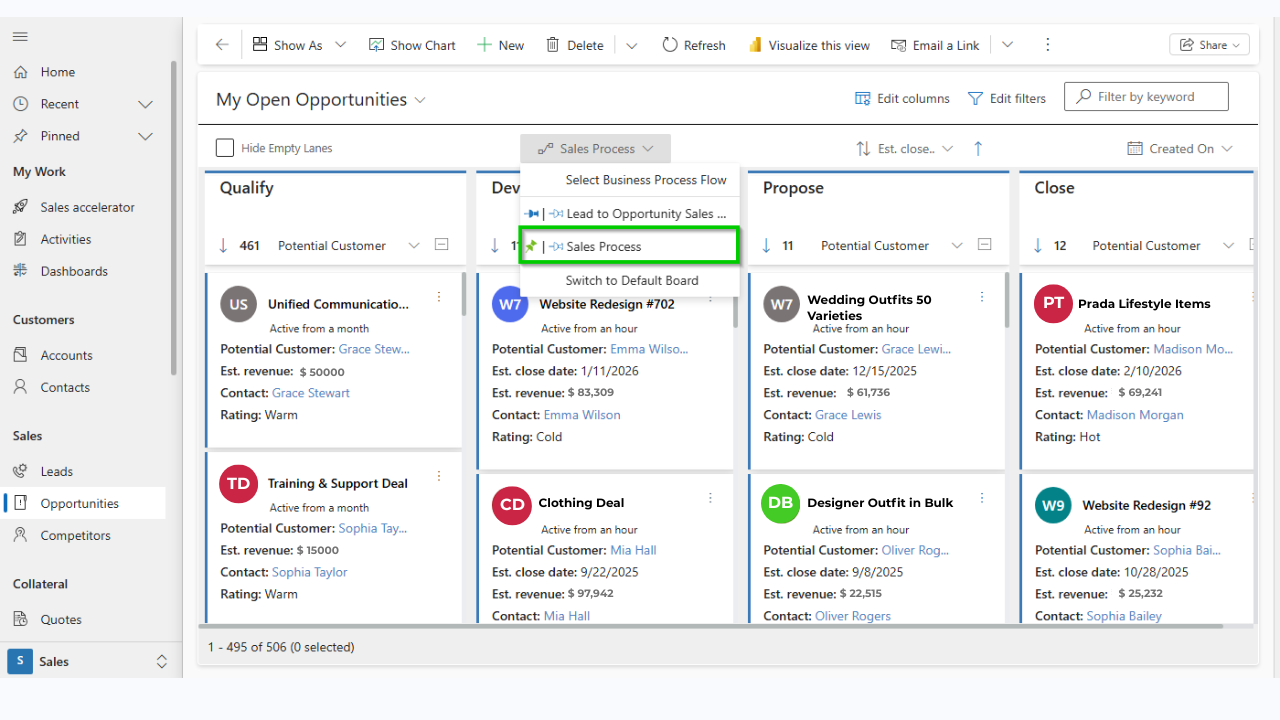
Kanban lanes in Dynamics 365 CRM — each column is a pipeline stage; each card is a live CRM record.
How Kanban Lanes and Kanban Cards Work in Dynamics 365
The concept is simple but powerful. Kanban lanes in Dynamics 365 represent deal stages, such as New Lead, Contacted, Proposal Sent, Negotiation, and Closed Won. Each lane holds Kanban cards in Dynamics 365 that map to actual CRM opportunity records, complete with account name, deal value, owner, and any custom fields the team chose to display.
When a rep closes a meeting or sends a quote, they drag the card to the next lane. The underlying CRM record updates automatically. No data entry duplication. No status email required.
Why does this matter for the retail industry?
U.S. retail sales cycles move fast - seasonal promotions, end-of-quarter pushes, and multi-location accounts all create pipeline noise. A real-time Kanban view in Dynamics 365 CRM lets retail teams spot bottlenecks in seconds and act on the right deals at the right time.
Key Features That Made the Difference for the US Retail Industry
- Swim Lanes & Row Grouping: Group Kanban lanes by region, product line, or rep, ideal for multi-location retail accounts.
- Drag-and-Drop Cards: Move deals across Kanban lanes with one click; CRM record status updates instantly.
- Card Color Coding: Color-code Kanban cards by deal size or closing date to surface hot opportunities at a glance.
- Quick Search & Advanced Lane Filter: Filter Kanban lanes by any CRM field — essential when managing hundreds of retail accounts.
- Aggregate Field Values: See total deal value at the top of each Kanban lane — live revenue-by-stage, every morning.
- Business Process Flow Support: Align Kanban lanes directly to Dynamics 365 BPF stages with zero reconfiguration.
The Outcome: A Retail Team That Actually Uses Their CRM
Three months after deploying Kanban Board for Dynamics 365, Jamie ran the numbers. CRM adoption, measured by daily active logins, climbed sharply because reps finally had a view that made sense to them. Pipeline reviews that once took 45 minutes now take under 10. Every rep opens their Kanban view in Dynamics 365 each morning, drags their cards, and moves on. Managers see the whole picture from one screen inside CRM.
The spreadsheet? Gone.

Frequently Asked Questions
How does Kanban view in Dynamics 365 help U.S. retail teams?
Retail teams use the Kanban view in Dynamics 365 CRM to visualize their full sales pipeline by stage, territory, or product category. Drag-and-drop Kanban cards let reps update deal status instantly, while swim lanes and row grouping give managers a live view — ideal for fast-moving retail sales cycles.
Can Kanban Board work with existing Dynamics 365 workflows?
Yes. Kanban Board works directly inside Dynamics 365 and supports Business Process Flows, allowing teams to manage opportunities without changing existing workflows.
Is Kanban Board for Dynamics 365 a PCF control?
Yes. Inogic's Kanban Board is a Kanban view PCF control built on the PowerApps Component Framework. It installs natively inside Dynamics 365 — no separate app, no data sync, no external login required.
What are Kanban lanes in Dynamics 365 CRM?
Kanban lanes in Dynamics 365 CRM are vertical columns representing pipeline stages or record statuses — such as New Lead, Contacted, Proposal Sent, and Closed Won. Users drag Kanban cards (live CRM records) between lanes to update deal stage in real time.
Ready to Add Kanban View to Your Dynamics 365 CRM?
Ready to turn your Dynamics 365 pipeline into a visual, actionable workspace?
Kanban Board by Inogic helps retail sales teams manage opportunities faster with drag-and-drop pipeline visibility built directly inside Dynamics 365.
Start a 15-day free trial from the Inogic Website or Microsoft Marketplace.
Want to have a CRM data visualization and workflow automation strategic demo? Reach us at [email protected].