How to Set Up Duplicate Detection Rules and Conditions in CRM (Step-by-Step Guide)
Duplicate records are one of the biggest reasons CRM data becomes unreliable. They distort pipeline forecasts, confuse sales teams, break automation, and weaken AI-driven insights.
In Dynamics 365 CRM, duplicate detection rules help you systematically identify, prevent, and manage duplicate records across the same entity or between different entities, like Leads and Contacts.
This guide explains how to set up duplicate detection rules in CRM from start to finish, including:
- Duplicate Matching Rules
- Duplicate Matching Conditions
- Multi-field matching
- Phonetic fuzzy matching
- Fuzzy indexing and performance optimization
- Phone number format matching
What Are Duplicate Detection Rules in CRM?
Duplicate Detection Rules allow you to define how CRM should identify duplicate records based on specific fields, logic, and matching methods.
A complete setup consists of:
- Duplicate Matching Rule – defines which entities are compared
- Duplicate Matching Condition – defines how fields are compared
Without both, duplicate detection cannot work.
Duplicate Matching Rules in CRM Explained
Duplicate Matching Rules define entity-level logic for detecting duplicates.
Example
- Contact → Contact (same entity)
- Lead → Contact (cross-entity)
- Account → Account
You can create multiple rules per entity, each serving a different business scenario.
Step-by-Step: How to Set up a Duplicate Matching Rule in CRM
Step 1: Navigate to Duplicate Matching Rules
After completing entity configuration, go to Duplicate Matching Rules in your CRM or DeDupeD configuration area.
Step 2: Create a New Rule
Click New Duplicate Matching Rule. This opens the configuration form.
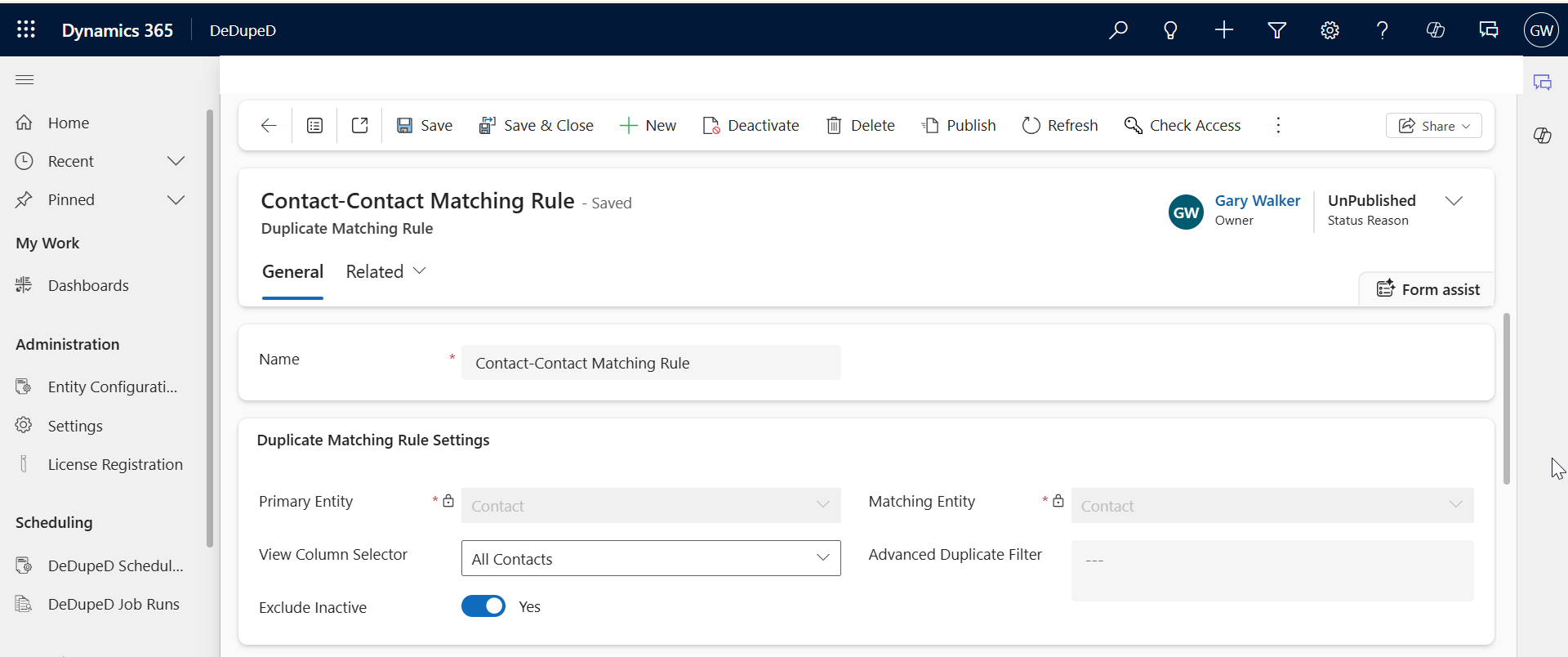
Step 3: Configure Rule Details
Fill in the following fields:
- Name: Give your rule a clear, descriptive name.
Example: Contact-Contact Matching Rule - Primary Entity: Select the entity for which duplicates should be detected.
Example: Contact - Matching Entity: Select the entity against which duplicates will be checked.
- Advanced Duplicate Filter: Use this to apply custom conditions using FetchXML.
Example use case:
Detect duplicates only for contacts created in the last 30 days.
This enables targeted duplicate detection instead of scanning unnecessary records.
Exclude Inactive Records
- Default: Yes
- Ensures inactive records don’t interfere with active data quality checks.
Step 4: Save the Rule
Click Save.

What Is a Duplicate Matching Condition in CRM?
Duplicate Matching Conditions define field-level logic, which fields are compared and how.
Example
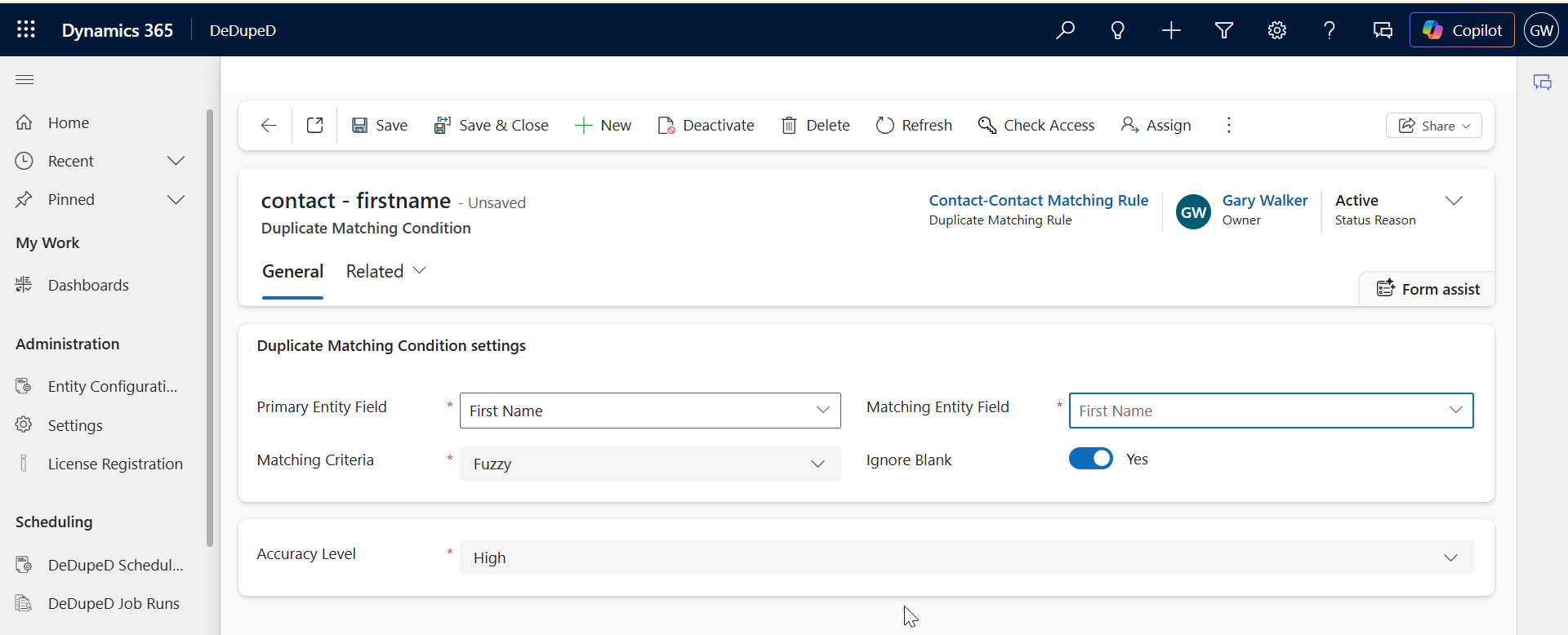
To detect duplicates based on First Name:
- Primary Entity Field: First Name
- Matching Entity Field: First Name
Step-by-Step: How to Create a Duplicate Matching Condition in CRM
Step 1: Open the Rule
Open your saved Duplicate Matching Rule.
Step 2: Add a New Condition
Click New Duplicate Matching Condition.
Step 3: Configure Condition Fields
- Primary Entity Field: Select the field you want to evaluate.
Example: First Name - Matching Entity Field: Select the field to compare against.
Only fields with the same data type will appear.
Multi-Field Duplicate Matching Using a Single Rule in CRM
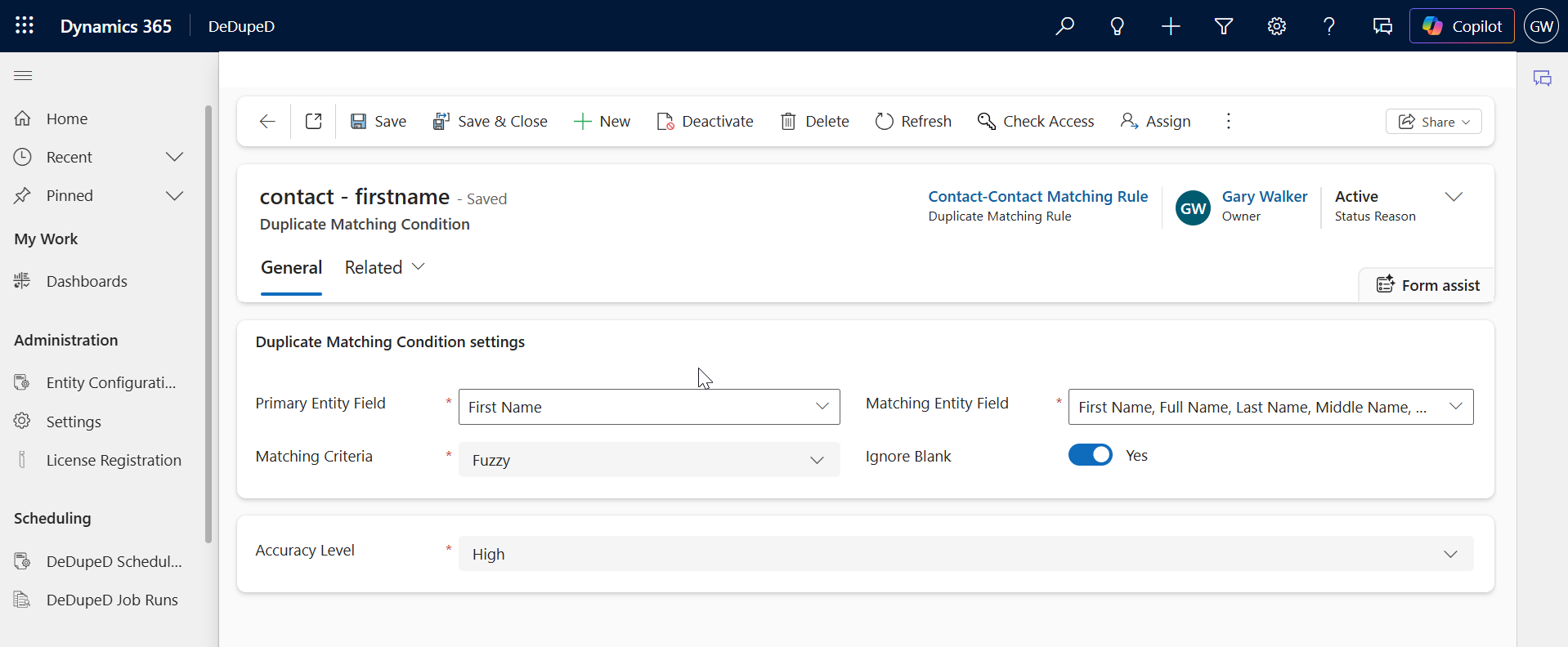
Multi-Field Matching allows you to compare one primary field against multiple matching fields—using OR logic.
Why This Matters
It:
- Reduces redundant rules
- Simplifies configuration
- Improves duplicate detection accuracy
How Multi-Field Matching Works
If any selected field matches, the record is flagged as a duplicate.
Steps to Configure Multi-Field Matching
- Open an existing Duplicate Matching Condition
- In Matching Entity Field, click + Add Field
- Select one or more fields
- Repeat if needed
- Save & Close
The system automatically applies OR logic across selected fields.
Duplicate Matching Methods for Duplicate Identification Explained
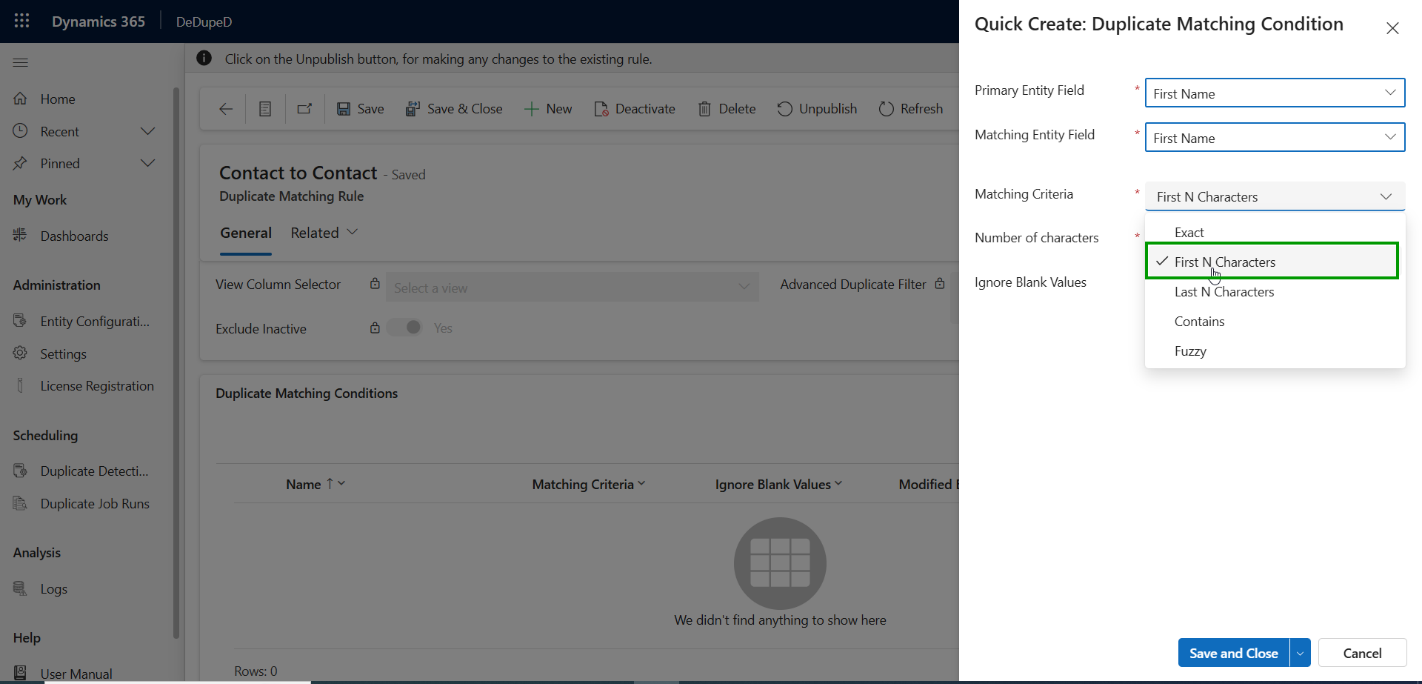
CRM supports multiple matching methods depending on your accuracy needs.
1. Exact Matching: Detects records with identical characters. Best for IDs, email addresses, or standardized fields.
2. First N Characters: Matches records based on the first N characters. Useful when partial data is common.
3. Last N Characters: Matches based on the last N characters. Helpful for suffix-based identifiers.
4. Contains Matching: Detects records where one value contains another. Useful for shortened names or partial entries.
5. Fuzzy Matching: Detects phonetic and spelling variations.
Example:
“John Smith” ↔ “Jon Smyth”
Ideal for:
- Names
- Global datasets
- Human-entered text fields
Ignore Blank Fields: What It Does
- Yes (Default): Blank fields are ignored during matching
- No: Blank fields are treated as matchable values
Use Ignore Blanks = Yes to avoid false positives.
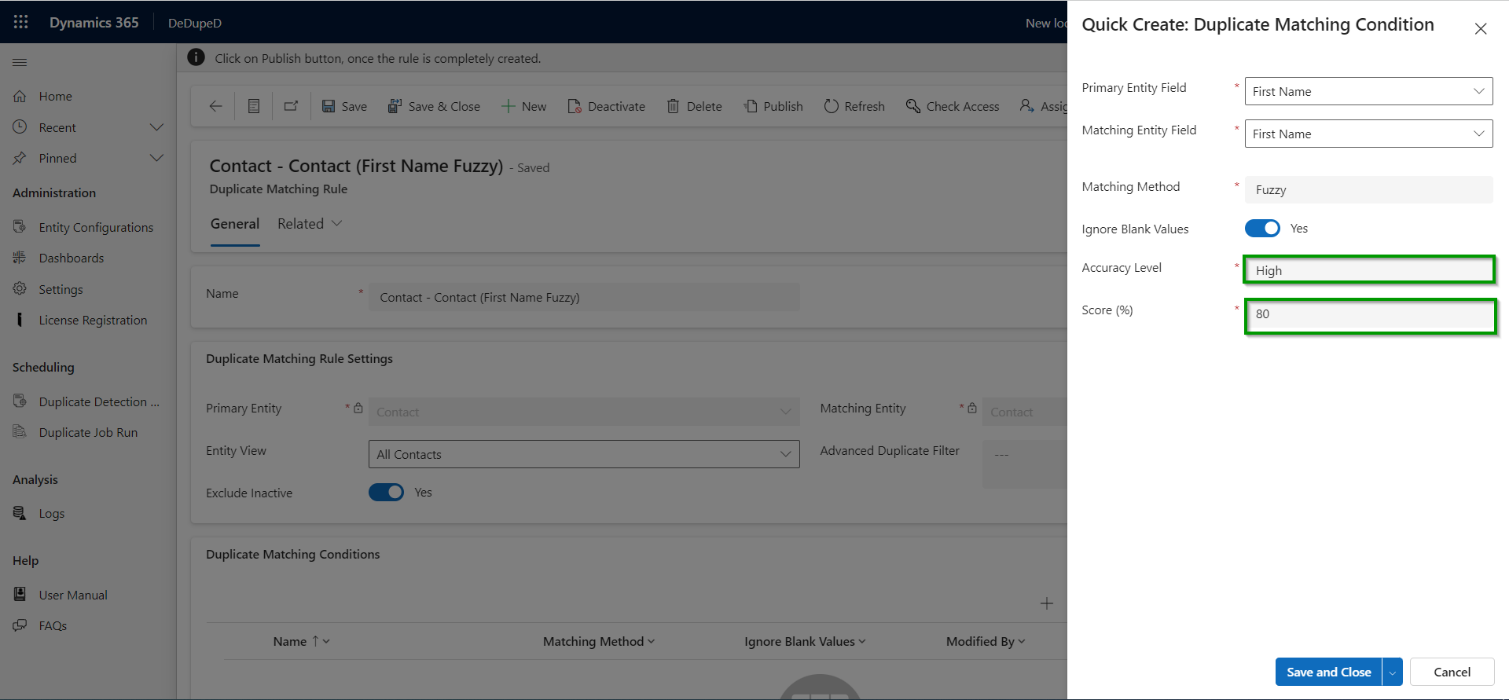
Phonetic Fuzzy Matching in CRM for Duplicate Identification
Phonetic Fuzzy Matching detects records that sound alike, even if spelled differently. It is widely used for identity resolution in CRM.
How to Enable Phonetic Matching
- Select Fuzzy as the Matching Method
- Choose an Accuracy Level
- Set a Score Threshold
- Save & Publish the rule
Accuracy Levels Explained
- Low: Broad matching (obvious duplicates)
- Medium: Balanced precision
- High: Strict phonetic similarity
Best Practice:
Use High accuracy with a score above 90% for reliable results.
Phone Number Format Matching in CRM
Phone numbers often differ by formatting, but still represent the same customer.
Example
- 98 92 485673
- (989) 248-5673
Phone Number Format Matching identifies these as duplicates.
How to Detect Phone-Based Duplicates
- Configure duplicate detection using phone number formats
- Go to Sales Hub → Contact
- Open a record
- Click Show Duplicates
This ensures a single, accurate customer view, especially for global teams.
Why Proper Duplicate Detection Matters for AI-Driven CRM
Clean data directly impacts:
- AI lead scoring
- Forecast accuracy
- Customer 360 views
- Automation reliability
Well-configured duplicate detection rules ensure CRM data is AI-ready, analytics-ready, and decision-ready.
Frequently Asked Questions: Duplicate Matching Rules and Condition in CRM
Q: How do duplicate detection rules work in Microsoft Dynamics 365 CRM?
Duplicate detection rules in Dynamics 365 CRM work by comparing records using predefined Duplicate Matching Rules and Duplicate Matching Conditions. These rules define which entities are compared (such as Contact to Contact or Lead to Contact) and which fields are evaluated using matching methods like exact, contains, or fuzzy matching. When a match is found, CRM flags the record as a potential duplicate during creation, update, or manual review.
Q: What is fuzzy matching in CRM duplicate detection?
Fuzzy matching in CRM identifies duplicate records based on phonetic and similarity-based comparisons, rather than exact text matches. This allows CRM to detect duplicates even when names or values are spelled differently, such as “John Smith” and “Jon Smyth.” Fuzzy matching is especially useful for global datasets, manually entered data, and multilingual environments where spelling variations are common.
Q: Can CRM detect duplicates across different entities?
Yes. Dynamics 365 CRM can detect duplicates across different entities, such as Leads and Contacts or Accounts and Contacts. This is done by creating cross-entity duplicate matching rules, where one entity is defined as the Primary Entity and the other as the Matching Entity. This approach helps maintain a single customer view across the CRM and prevents data silos.
Bonus: Bringing It All Together: From Duplicate Detection to Duplicate Merging in CRM
Setting up duplicate detection rules in Microsoft Dynamics 365 CRM is the first step toward cleaner data, but managing rules, fuzzy logic, indexing, and ongoing duplicate resolution can quickly become complex as data grows.
This is where an all-in-one approach becomes valuable.
Solutions like DeDupeD are designed to centralize the entire duplicate management lifecycle—starting from configurable matching rules and fuzzy detection, extending to performance-optimized indexing, and continuing through advanced merging and record consolidation. Instead of treating duplicate detection and data cleanup as separate processes, everything works together to maintain a consistent, unified customer view inside Dynamics 365.
For teams dealing with high data volumes, multiple entities, and AI-driven CRM insights, this approach helps ensure that duplicate prevention, detection, and consolidation remain scalable, accurate, and easy to govern over time.
Conclusion
Setting up duplicate detection rules in CRM isn’t just about blocking duplicates, it’s about protecting data integrity at scale.
By combining:
- Smart matching rules
- Multi-field logic
- Fuzzy and phonetic matching
- Targeted indexing
You build a CRM foundation that supports automation, AI, and revenue growth.
Prefer a personalized demo to understand end-to-end configuration? Reach out to us at [email protected]. Our CRM experts are happy to guide you and answer all your questions.
Start your 15-day free trial from the Inogic website or via the Microsoft Marketplace.