The Complete Guide to Using Kanban Boards in Dynamics 365 CRM
A Kanban board is a powerful visual management tool, originally popular in project management and lean workflows, that brings clarity, structure, and efficiency to CRM workflows.
In the context of Dynamics 365 CRM (or Dataverse / Power Apps), a Kanban Board lets you view records (opportunities, cases, tasks, projects, custom entities, etc.) as cards, organized by status or business process stages, so you instantly know where each record stands.
In this guide, we cover
- What a Kanban Board brings to Dynamics 365 CRM
- How to configure and use it
- Why it improves workflows
- And answers for the most common questions
— making the post useful for CRM admins, sales/service/project teams, and decision-makers.
Let’s dive in.
Which entities in Dynamics 365 CRM support the native Kanban view out of the box?
Answer:
- Out of the box, native Kanban control in Dynamics 365 CRM works on Opportunity and Activity entities only.
- For other entities (e.g. Cases, Projects, custom entities), out-of-the-box support does not exist. You’d need a specialized Kanban/visualization add-on (or custom solution) if you want Kanban for those.
How do I enable/configure Kanban view for Opportunities or Activities in Dynamics 365 CRM?
Answer:
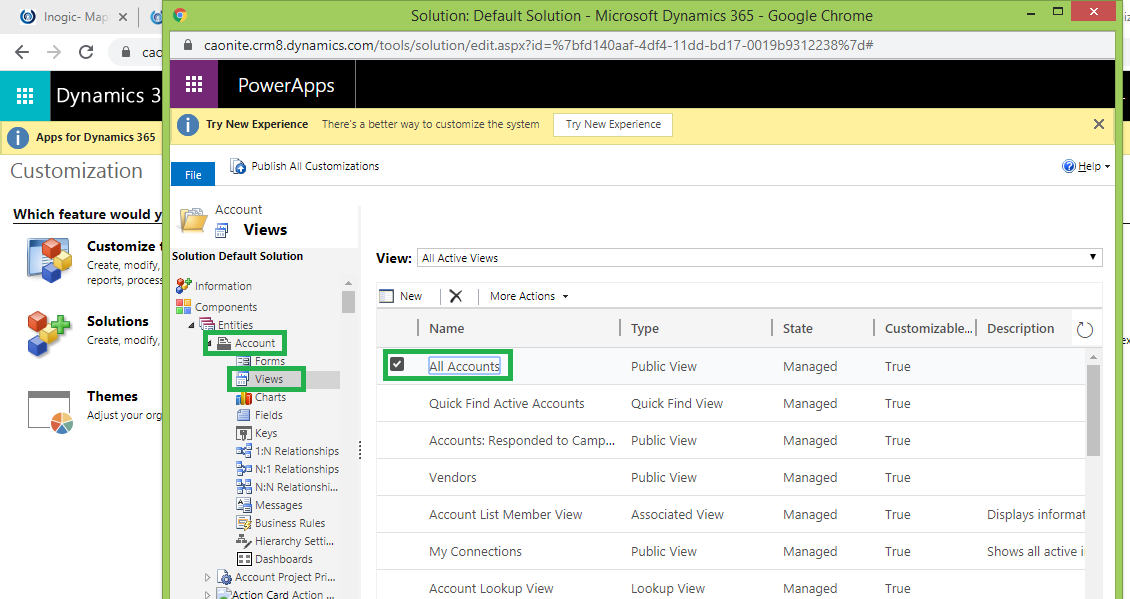
- Go to Settings → Advanced Settings → Customizations → Customize the System. Then select the relevant entity (Opportunity or Activity).
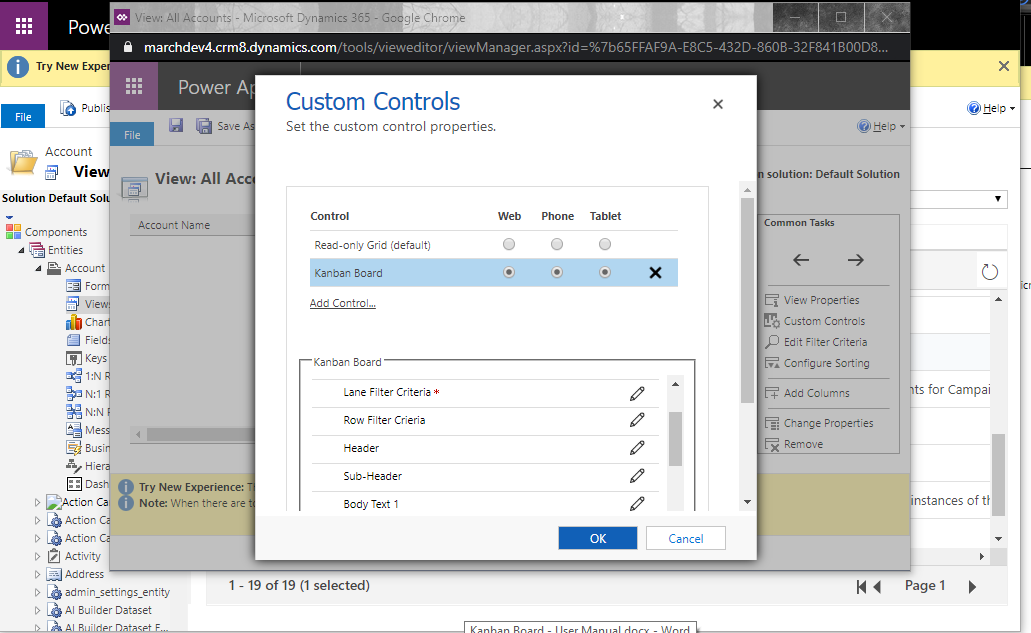
- Under the entity, go to the Views section and pick a public view; then go to Controls and add Kanban as a control. Set which surfaces you want it (web, tablet, phone - as needed). Save and publish.
- Once enabled, users can go to the entity (e.g. Opportunities) and switch view via the command bar: “Show As → Kanban” (or similar) to open the Kanban board.
What kinds of Kanban views are available for Opportunities in Dynamics 365 CRM?
Answer:
For Opportunities, two main types of Kanban views are provided:
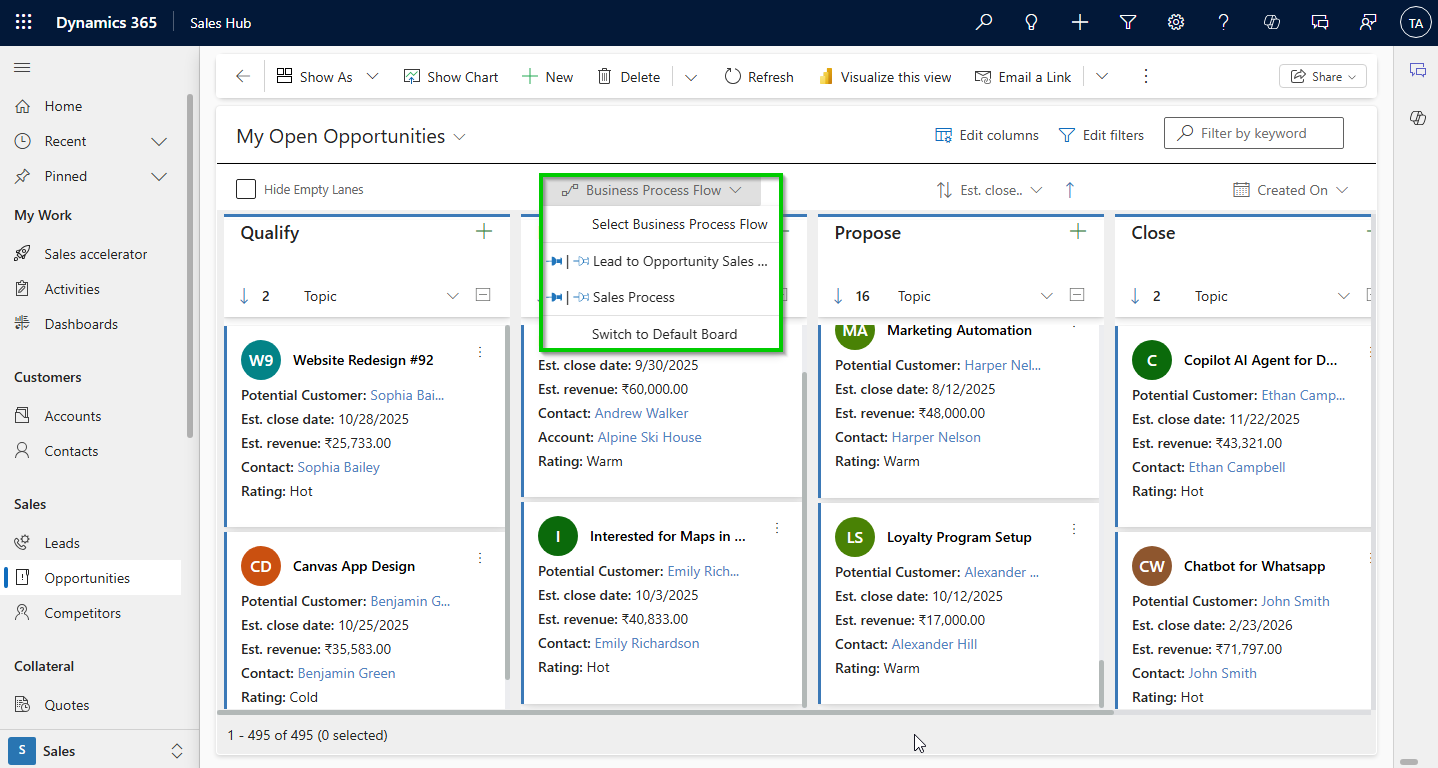
- Business Process Flow (BPF)-based view: lanes correspond to the stages in the Opportunity sales process (e.g. Qualify → Develop → Propose → Close).
- Status-based view: lanes correspond to the Opportunity status (e.g. Open, Won, Lost).
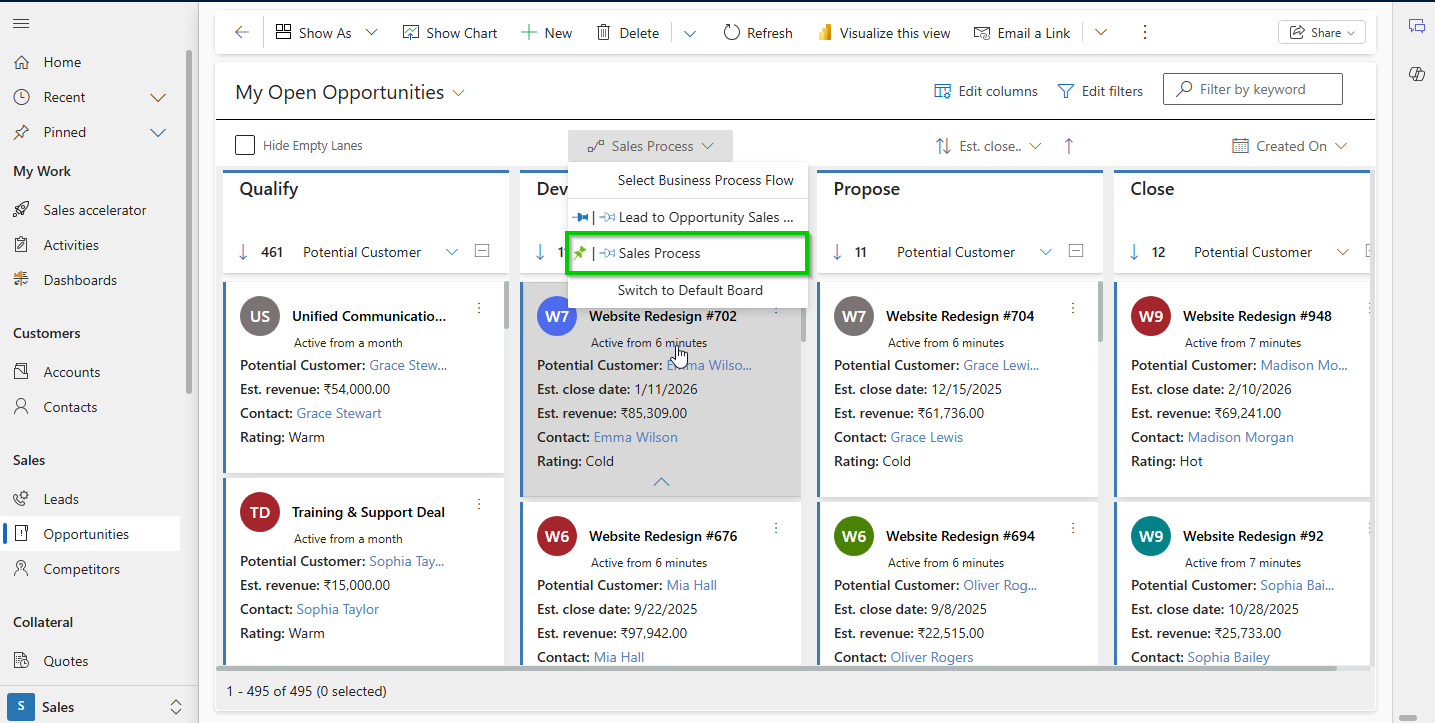
Users can switch between these views via a dropdown within the Kanban board.
What are the main features & benefits of using a (full-featured) Kanban Board solution with Dynamics 365 (beyond native)?
Answer:
Third-party or enhanced Kanban Board solutions (built for Dynamics 365 / Dataverse) bring many advanced features:
- Support for multiple entities: Not just Opportunities/Activities — you can have Kanban on Cases, custom entities, projects, support tickets, etc.
- Rows + lanes (two-dimensional layout): You can define rows (e.g. by priority, customer, region) and lanes (by status/stage), enabling more complex board organization.
- Drag-and-drop to move records: Easily move cards between lanes/rows to update status or stage; underlying field values automatically update.
- Bulk/multiple card moves: Move multiple records at once (bulk), helpful when reorganizing many items.
- Inline editing & quick actions: Edit some fields directly on the card; also quick activity-creation or other actions without opening the full record form.
- Aggregations & summaries: For numeric fields (e.g. budget, estimated revenue, deal size), you can show total, sum, average, etc., per lane/row - useful for pipeline value grouping.
- Filtering, sorting, quick search inside board: Helps focus on relevant records (e.g. by date, owner, priority) when there are many records.
- Works across web, desktop, sometimes mobile/tablet (depending on solution): Many add-ons support web and tablet; native view has limitations.
- Better support for service, support ticket, project workflows: Useful when CRM is used not just for sales pipelines but for customer service or project management.
Overall, such a Kanban solution brings CRM data visualization closer to modern “work-management tools”, but within the familiar CRM/Dataverse ecosystem.
Can I switch back from Kanban view to regular grid view?
Answer:
Yes — Kanban board in Dynamics 365 CRM allow switching between Kanban view and the standard grid (list) view. For instance, in native Dynamics 365 Kanban for Opportunities/Activities, once Kanban control is added, you get a “Show As → Kanban” option; you can similarly revert back.
Enhanced Kanban solutions also typically allow toggling back to grid view (or any other view) to accommodate users who prefer list-based data or for bulk operations that are easier in grid.
Can I use Kanban view for custom entities (e.g. Cases, Projects, custom tables) in Dynamics / Dataverse?
Answer:
- Native built-in Kanban view does not support custom entities by default — only Opportunity and Activity.
- However, many third-party Kanban Board solutions for Dynamics 365 / Dataverse (Power Apps) allow configuring Kanban for any entity (including Cases or custom ones), by adding Kanban control to that entity’s view.
- For example, you can enable Kanban for a “Case” entity, define which field determines swim-lanes (e.g., status code), and use Kanban for support ticket tracking workflow.
How does Kanban Board support Business Process Flows (BPFs) in Dynamics 365 CRM?
Answer:
- When using a Kanban solution that supports BPF, the lanes (columns) on the board correspond to the stages defined in a Business Process Flow. Records move across these lanes as their BPF stage changes, giving a visual representation of where each record is in the process.
- For advanced Kanban solutions, BPF support can extend beyond standard entities to custom entities or broader workflows (e.g. support, service, project flows), making Kanban a powerful tool for end-to-end process visualization.
Can Kanban Boards help beyond sales, e.g. for customer support, service cases, project tracking, or custom workflows?
Answer:
Yes, especially when using a full-featured Kanban add-on on Dataverse / Power Apps. Many organizations utilize Kanban for managing support tickets, service case management, project tasks, or custom workflows, in addition to sales pipelines.
For example, with Cases or custom entities configured for Kanban, you can track support tickets or service requests through statuses like New → In Progress → On Hold → Resolved, with cards, lanes, and rows, improving clarity and response time.
What should a CRM administrator or team consider when deciding between native Kanban and a full-featured Kanban Board add-on?
Answer:
Consider the following factors:
- Scope of entities & workflow complexity: If you only manage sales Opportunities and Activities, native Kanban might suffice. But for support cases, custom entities, projects, service tickets, or custom workflows, add-on Kanban gives more flexibility.
- Need for customization: If you need custom fields, custom card layouts, row grouping, bulk operations, aggregations, add-on Kanban is often necessary.
- Volume of data: For large volumes (many records) or requirements for summaries/aggregations, enhanced Kanban tends to perform better and offers more features.
- User convenience & productivity: Inline editing, quick actions, bulk moves, for teams working heavily in CRM daily, an add-on Kanban can save time and reduce clicks.
- Budget/licensing/complexity: Add-on solutions may require additional licensing or subscription; native Kanban is included but limited. Evaluate cost vs benefit.
- Maintenance & support: Add-on solutions often come with vendor support, updates, and may require admin configuration; native Kanban relies on standard CRM updates and has fewer dependencies.
Conclusion
A Kanban Board brings powerful visualization and workflow-management capabilities to Dynamics 365 CRM, converting CRM data into intuitive, actionable visual dashboards. Whether you are managing sales pipelines, customer support cases, project tasks, or custom workflows, a Kanban Board helps you track progress, identify bottlenecks, and improve team collaboration and productivity.
For organizations needing advanced flexibility (custom entities, multi-entity workflows, aggregated metrics, bulk operations), using a full-featured Kanban Board addon/component for Dataverse / Dynamics 365 offers significant advantages over the native Kanban view.
If you implement it thoughtfully, with consistent configuration, proper user roles, and training — Kanban can transform how your team interacts with CRM data and workflows.
For more details, visit the Inogic Website or Microsoft Marketplace.
Reach us at [email protected] to get a demo of Kanban Board for CRM data visualization.