How to Set & Track Sales Targets in Microsoft Dynamics 365 (No Power BI Required)
Every sales manager wants to know how their team is performing against targets.
- Who's ahead?
- Who needs a nudge?
- Which rep is logging calls but not closing deals?
The problem? Most Dynamics 365 teams assume they need a full Power BI setup to get that kind of visibility.
That means weeks of report building, a dedicated developer, and sometimes a premium license, just to answer a simple question: Is my team hitting their numbers?
Here's the good news: you don't need any of that.
If you're already using Dynamics 365 CRM, you can set individual sales targets and track them natively, right inside your CRM, using User Adoption Monitor by Inogic.
Key Takeaways
- No Power BI? No problem. You can assign and track individual sales targets directly inside Dynamics 365 CRM using User Adoption Monitor, with zero report-building required.
- Two target types, one tool. User Adoption Monitor lets you track by count (e.g., leads created) and by value (e.g., revenue closed), giving managers a full view of both effort and outcomes for every rep.
- Targets drive adoption. When reps can see their own progress inside the CRM, they use it more consistently, turning your Dynamics 365 investment into a daily performance habit.
Let's walk through how it works and why it's a game-changer for small and mid-sized sales teams.
Why Individual Target Tracking Gets Overlooked in Dynamics 365
Dynamics 365 has powerful reporting features out of the box, including views, charts, and dashboards. But when it comes to setting a personal target for each rep and tracking their progress against it in real time, the native CRM falls short.
Most teams work around this by:
- Exporting data to Excel every week
- Manually building Power BI dashboards (which go stale quickly)
- Relying on gut feel in pipeline review meetings
None of these are scalable, and all of them take time that your managers could be spending coaching their reps.
💡 Real Talk: If you're spending more time building reports than reviewing them, something is broken in your sales ops workflow.
Enter Target Tracking - A Feature Most Teams Don't Know Exists
User Adoption Monitor is a Dynamics 365 CRM add-on by Inogic designed to track
- How users interact with your CRM
- what they're doing
- how often
- and how well.
One of its most powerful (and underused) features is Target Tracking.
With Target Tracking inside UAM, you can:
- Assign individual targets to specific CRM users
- Track progress based on count (e.g., number of leads created) or aggregate value (e.g., total revenue from closed opportunities)
- Set targets over fixed time intervals - weekly, monthly, quarterly
- View real-time progress on dashboards - no export, no refresh needed
It's the individual performance layer that Dynamics 365 was always missing, and it lives right inside your existing CRM environment.
Two Ways to Set Targets in Dynamics 365 (And When to Use Each)
User Adoption Monitor gives you two distinct methods for defining what a "target" means for each user:
1. Count-Based Targets
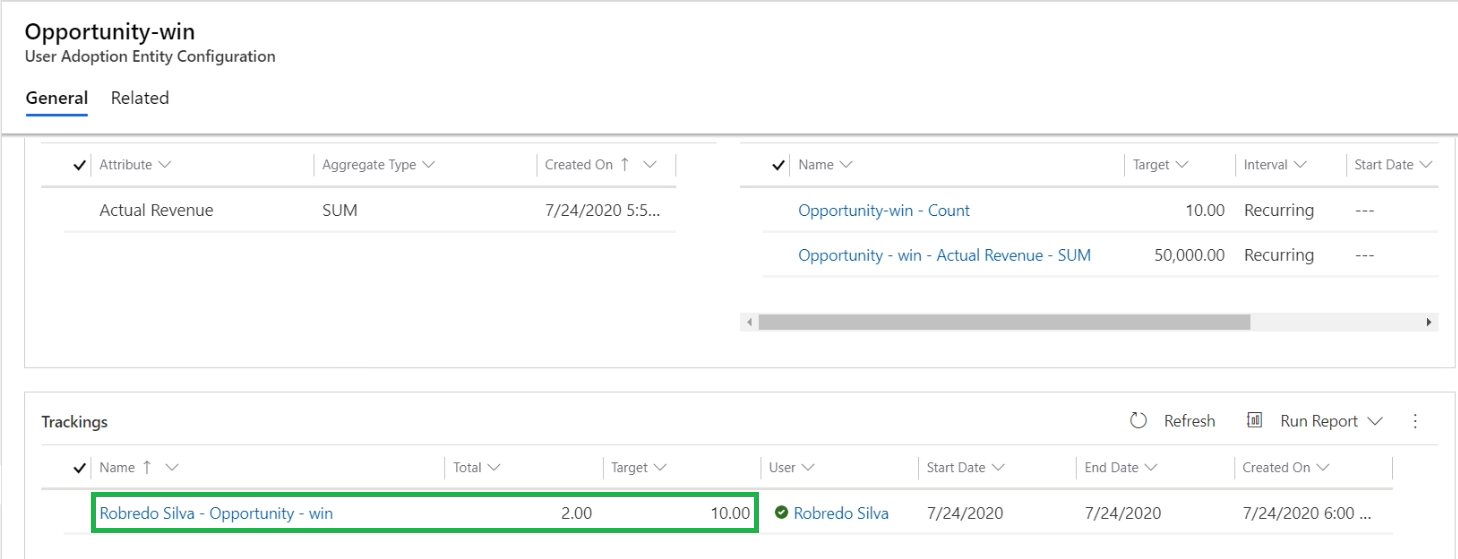
This is perfect for activity-driven metrics. You set a target based on the number of times a user performs a specific CRM action.
Examples:
- Rep A should create 20 new leads per month
- Rep B should close 10 opportunities this quarter with revenue of $500000
- Each service agent should resolve 50 cases per week
This approach works brilliantly when the volume of activity matters, and when you want to track adoption of specific CRM workflows alongside performance.
2. Aggregate Value-Based Targets
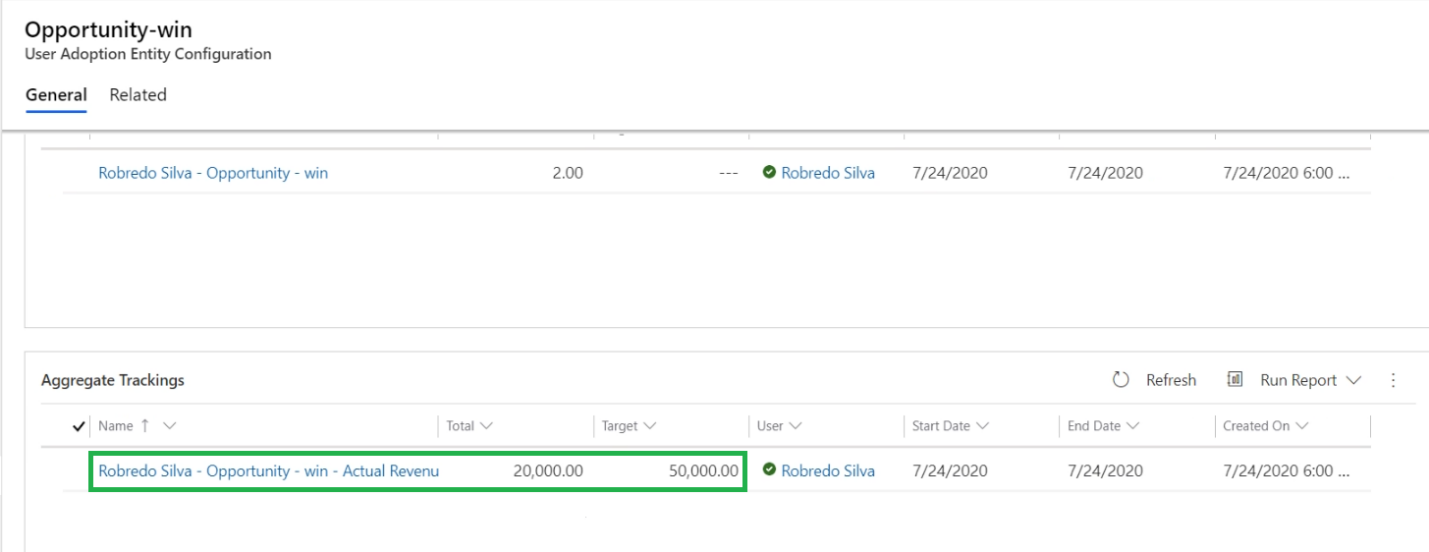
This one is more suited to revenue and outcome tracking. Instead of counting actions, you track the sum of a numeric field across those actions.
Examples:
- Rep A's closed opportunities should total $50,00,000 in revenue this month
- Track total contract value created by each account manager
- Sum the estimated revenue across all opportunities opened by a rep
Together, these two modes let you build a complete picture of both effort (count) and outcome (value), for every individual on your team.
📌 Pro Tip: Use count-based targets to monitor CRM discipline (are they logging activity?), and aggregate targets to measure business impact (is the pipeline actually growing?). Run both together for a complete view.
What This Looks Like in Practice
Imagine you're a sales manager with a team of five reps. It's the start of the quarter, and you want each rep to work toward:
- 30 new leads created
- 15 qualified opportunities
- $25,00,000 in closed revenue
With User Adoption Monitor's Target Tracking, you log into Dynamics 365, set these targets per user, and from that point on, every rep can see their own progress on the dashboard, and you can see everyone's progress at a glance.
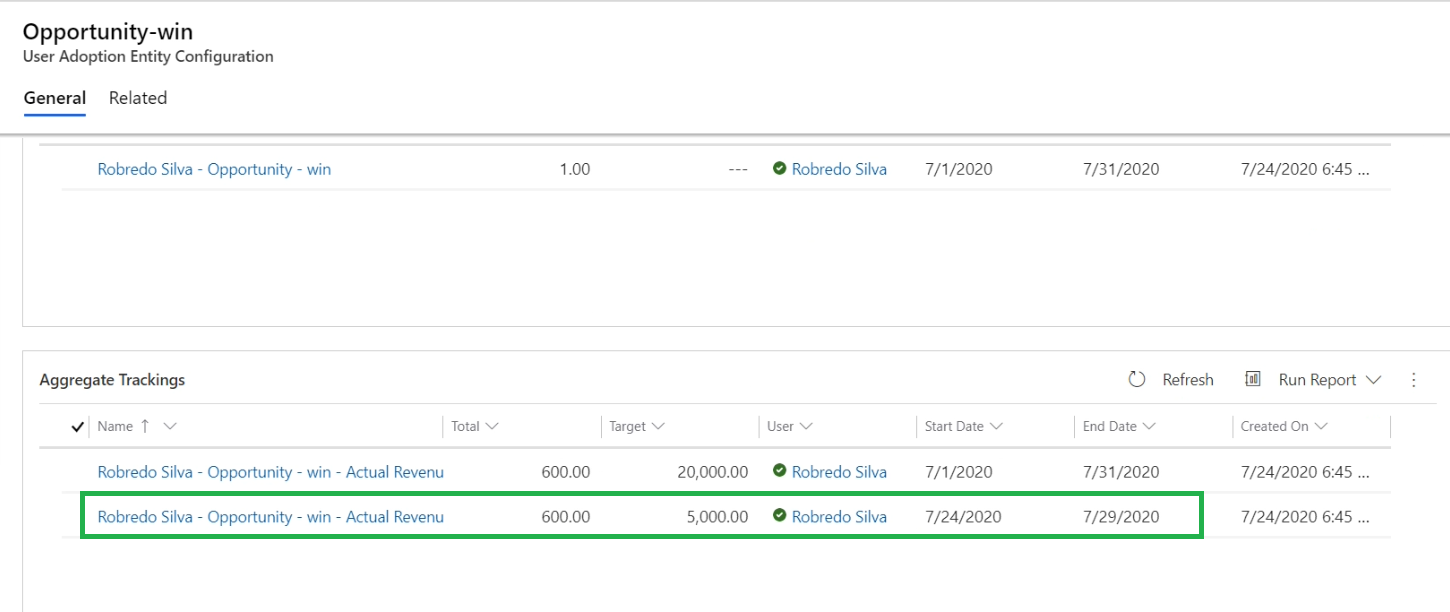
No spreadsheet. No Power BI report. No waiting for the weekly pipeline call to find out where things stand.
When a rep is falling behind, you know early enough to do something about it. When someone is ahead of target, you can highlight it and motivate the rest of the team.
Why This Matters for Dynamics 365 User Adoption
Here's something that doesn't get said enough:
When reps can see their own targets and progress inside the CRM, they actually use the CRM more.
User adoption in Dynamics 365 isn't just about training people to log in, it's about giving them a reason to. When the CRM becomes the source of truth for their performance, the motivation to keep records accurate skyrockets.
Microsoft Dynamics 365 user adoption improves naturally when:
- Reps trust that the data reflects their real work
- Managers use CRM data in 1:1s and team reviews
- Individual accountability is visible and fair
User Adoption Monitor’s Target Tracking creates exactly this kind of environment, making activity tracking in Dynamics 365 feel meaningful rather than like surveillance.
Final Thoughts
Tracking individual sales targets in Dynamics 365 doesn't have to be a complex, expensive BI project. With User Adoption Monitor's Target Tracking feature, you get a practical, CRM-native way to assign goals, monitor progress, and boost accountability, all from inside the platform your team already uses.
It's one of the smartest ways to drive Dynamics CRM user adoption, improve data quality, and give your managers the visibility they've always needed.
Want to see it in action?
Download a 15-day free trial of User Adoption Monitor from the Inogic Website or Microsoft Marketplace, or reach out to the Inogic team at [email protected] for a personalized demo.