Power Automate or a CRM Alert Tool? How to Manage Dynamics 365 Alerts
A sales manager needs to flag a high-value opportunity. A service team must know when a case changes status. A business administrator needs to announce a policy update to CRM users.
All three scenarios require timely communication, but they do not necessarily need the same approach.
Power Automate can trigger actions when Dynamics 365 data changes. However, when your team needs to create, schedule, target, prioritize, and manage notifications inside CRM, you may need more than a flow. That's where you need a dedicated CRM notifications tool.
The right choice depends on what you need your alerts to do, who should receive them, and how users should act on them.
When is Power Automate enough for Dynamics 365 alerts?
Power Automate is useful when a CRM event needs to trigger an action. For example, you can configure a flow to send an email when a lead is created, notify a manager when an opportunity reaches a certain stage, or run an action when a record changes.
It is a practical option when your requirement is primarily workflow automation.
Consider a few examples:
- Email after a record update: Notify a manager when an opportunity's estimated revenue changes.
- Task-based reminders: Trigger an action when a record meets a defined condition.
- Connected processes: Start actions across supported services when a CRM event occurs.
These scenarios can be handled through Power Automate, depending on the trigger, connector, and flow configuration.
The challenge begins when notifications become a regular part of how your team works in Dynamics 365. You may need pop-up messages, targeted announcements, different alert priorities, scheduled visibility, or a way for users to revisit notifications.
At that point, the question is no longer just how to trigger a message. It is how to manage the alert experience.
When should you consider a CRM alert tool?
A CRM alert tool is worth considering when teams need more control over how notifications are created, delivered, and managed within Dynamics 365.
Before choosing a solution, ask these five questions:
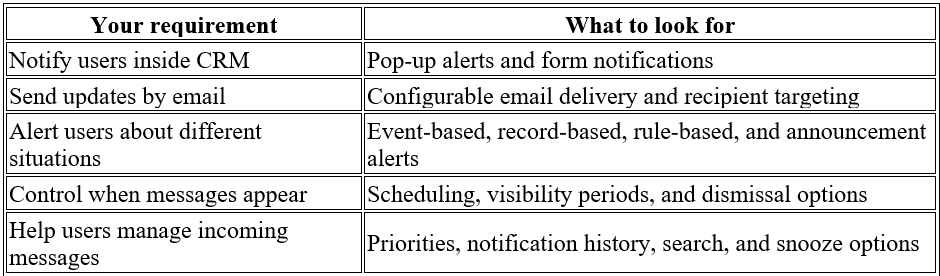
These requirements are particularly relevant when you need to manage Dynamics 365 alerts across sales, customer service, operations, or other teams.
For example, an email may tell a sales manager that an opportunity has changed. A contextual CRM notification can also bring the update to the user's attention while they are working in the system. An announcement can communicate a broader update without requiring an individual record change.
The objective is to deliver the right information to the right people in a format they can act on.
What should you look for in a Dynamics 365 alert tool?
Not every notification requirement is the same. A useful solution should support different alert scenarios rather than treating every message as an email.
1. Different types of alerts
Look for support for record-specific messages, condition-based alerts, event-triggered notifications, and organization-wide announcements.
This helps teams handle individual record updates and broader communications through a consistent approach.
2. Flexible delivery options
Depending on the situation, users may need an email, an in-app message, or a pop-up while working on a record.
A dynamics 365 pop-up alert can bring an important update into the user's workflow. A dynamics crm pop-up alert may be suitable when the message needs attention within CRM rather than in a separate inbox.
Email still matters when recipients need to be notified outside the application. Check whether the tool supports internal users, teams, and external recipients where required.
3. Control over recipients and timing
Not every update should reach every user. Look for ways to target notifications by user, team, security role, record, or business condition.
You should also check whether the solution supports dynamics 365 scheduling alerts, defined visibility periods, and multiple notifications for a single alert. These controls help teams communicate planned changes, recurring updates, and time-sensitive information without relying on manually sent messages.
4. Prioritization and notification management
A critical case update should not get lost among routine announcements. Alert priorities can help users distinguish urgent issues from general information.
When evaluating a dynamics 365 alert tool, check whether users can review, search, dismiss, or snooze notifications, and whether administrators can inspect read or dismissed status where supported.
The goal is not to create more alerts. It is to make important updates easier to notice and manage.
How can you add and manage alerts in Dynamics 365?
The approach depends on the outcome you need.
If you want a record change to trigger an automated action, Power Automate may be sufficient. If you need configurable alerts that appear within CRM, target specific audiences, and support different delivery and management options, evaluate a CRM alert tool.
For teams looking to add and manage alerts in Dynamics 365 in one place, Inogic's Alerts4Dynamics provides four alert types:
- Record-based alerts: Notify users about a particular record.
- Rule-based alerts: Create alerts when records meet defined conditions.
- Event-based alerts: Generate notifications in response to CRM events.
- Announcements: Share organization-wide information with the intended audience.
Alerts4Dynamics supports standard and custom entities, with delivery through pop-ups, form notifications, and email. Teams can configure alert priorities, define audiences, set visibility periods, and manage notifications within Dynamics 365. Additional features include multilingual messages, notification search, snooze options, and scheduled email digests.
This makes it an option for organizations that need more than a flow that sends an email. They can configure dynamics 365 notifications around specific records, conditions, events, and announcements, with controls over how those messages reach users.
Explore Alerts4Dynamics to see whether its alert types and delivery options fit your team's requirements.
Choose alerts based on how your team works
Power Automate is useful for triggering actions and connecting processes. A CRM alert tool becomes worth evaluating when you need configurable notifications, targeted delivery, prioritization, scheduling, and management within Dynamics 365.
Before deciding, list the events your team needs to communicate, who should receive each alert, how it should appear, and how long it should remain visible.
If those requirements extend beyond sending an email, explore Alerts4Dynamics and start a 15-day free trial to evaluate its alert and notification management capabilities in your environment.
Frequently asked questions
Can Power Automate send Dynamics 365 email alerts?
Yes. Power Automate can trigger email actions when configured Dataverse events or conditions occur. The setup depends on the trigger and the workflow requirements.
Can I create pop-up alerts in Dynamics 365?
Yes, but the approach depends on the functionality you need. If you require configurable pop-ups and form notifications managed as CRM alerts, evaluate a solution that explicitly supports those options.
Can I create multiple alerts for different CRM scenarios?
Yes. Depending on the tool, you can configure different alerts for record updates, business conditions, CRM events, and announcements. Check how it supports dynamics 365 multiple alerts and whether each alert can have its own audience and delivery settings.
Can I send Dynamics 365 alerts to selected users or teams?
Some CRM alert tools support audience targeting, including specific users, teams, or security roles. Verify the available targeting options and how they apply to your CRM configuration.
How do I choose between email alerts and in-app notifications?
Use email when recipients need a message in their inbox. Use in-app notifications when users need to see updates while working in CRM. Many teams need both, so check whether the chosen solution supports the delivery methods your processes require.