How to Implement a Barcode System in a Warehouse?
A barcode system can make warehouse work faster, easier, and more accurate. It helps track products, reduce mistakes, and save time during receiving, picking, packing, and shipping. If your warehouse still depends on manual entry or paper records, moving to a barcode system can improve your daily operations in a big way.
In this blog, we will explain how to implement a barcode system in warehouse operations in simple steps. We will also cover the benefits, tools you need, and common mistakes to avoid.
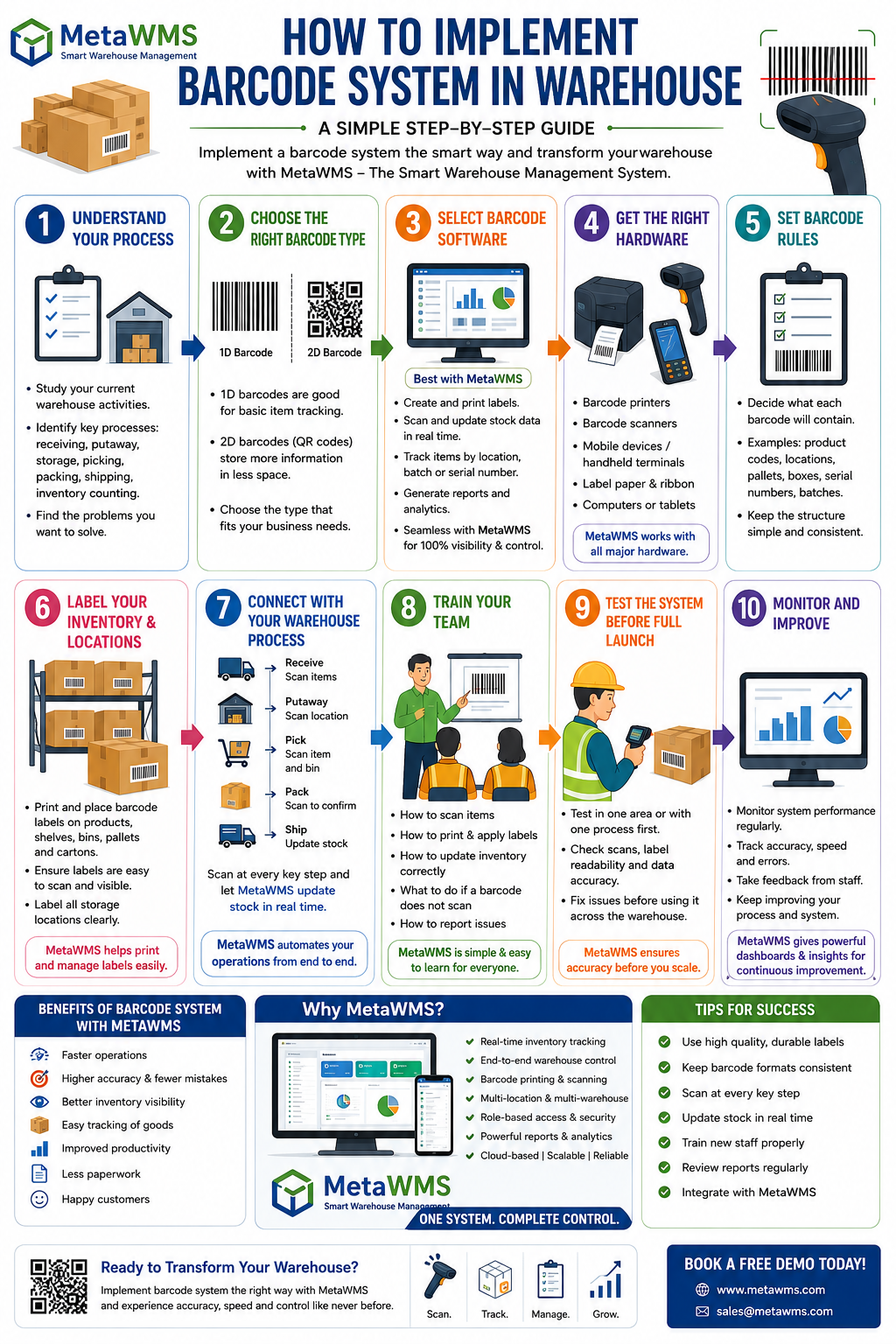
What Is a Barcode System in a Warehouse?
A barcode system uses printed barcode labels and scanners to track items in the warehouse. Each barcode stores product information, such as item code, location, batch number, or serial number.
When a worker scans the barcode, the system quickly shows the correct data. This reduces manual work and helps avoid errors.
Why Use a Barcode System in a Warehouse?
A barcode system is important because warehouse work is all about speed and accuracy. Without a proper tracking system, it is easy to misplace items, ship the wrong product, or enter data incorrectly.
Here are some key benefits:
- Faster inventory updates
- Fewer picking and packing mistakes
- Better stock visibility
- Easy tracking of incoming and outgoing goods
- Improved order accuracy
- Less manual paperwork
- Better productivity for warehouse staff
What Are Barcode Types and Standards?
A key decision is which barcodes to use. There are many symbologist, but in warehouse settings the following are most common:
- UPC/EAN: 1D linear codes (UPC is 12-digit, EAN-13 is 13-digit) used for retail products. If you sell through retailers or marketplaces, you likely already use these standards. They encode the GTIN (Global Trade Item Number). UPC/EAN are globally recognized but can only hold a single product identifier (no extra info like lot or expiry).
- Code 128 (Code128): A high-density 1D barcode supporting alphanumeric data. It is commonly used for internal SKUs or when GS1-128 (below) is not needed. Code128 is very accurate and widely supported by scanners. If you just need to encode an item SKU or location ID, Code128 is a good choice.
- GS1-128 (formerly UCC-128): This uses Code128 symbology plus GS1 Application Identifiers (AIs) to encode multiple pieces of information in one barcode. For example, a GS1-128 label on a pallet could include the GTIN, lot number (batch), expiration date and a serialised shipping container code (SSCC). This is ideal for shipping cartons or cases where partners need traceability. However, standard point-of-sale scanners cannot read GS1-128 with extra AIs, so it’s used for internal logistics, not checkout.
- Data Matrix (2D) and QR Codes: These 2D codes can hold much more data (hundreds of characters) in a small area. Data Matrix is common in manufacturing for part marking (and is highly robust for tiny parts). QR Codes have become popular for general use (e.g. linking a product to a URL or for scan-and-go operations). In warehouses, 2D codes are often used for small lot numbers or asset tags. They require imagers (camera scanners) to read, but they tolerate damage better and can include checksums and error correction.
- GS1 QR (Digital Link): An emerging standard where a QR code contains a web link (GS1 Digital Link) along with GS1 data (like GTIN, batch, etc). It’s still less common in warehouses but may appear in industries moving toward QR-based traceability.
Choosing symbologies: Use GS1 standards when exchanging information with partners. For example, use EAN/UPC for consumer products, GS1-128 with SSCC for pallet tracking, GS1-128 or Data Matrix for regulated goods requiring lot/expiry codes (like food, pharma). Use Code128 or simpler internal barcodes for your own SKUs, rack locations and bins. Importantly, pick a uniform approach for each category: if all shelf locations use Code128 with a specific format, staff will scan faster and make fewer mistakes.
The GS1 Organization provides standards for barcode content. For instance, UPC/EAN barcodes encode a GTIN (Global Trade Item Number) which uniquely identifies a product. (The difference: UPC is 12 digits in North America, EAN-13 is 13 digits elsewhere.) A lot or batch number can be encoded using GS1 AIs (e.g. AI(10) for batch, AI(17) for expiration date), typically in a GS1-128 code. A Serial Shipping Container Code (SSCC) is an 18-digit number for pallets/containers and is usually encoded in GS1-128 as well. Serial numbers and asset tags may use proprietary encoding if GS1 is not needed.
Regardless of format, ensure your WMS is configured to recognise each code type. For example, if a rack label is “A-101-Bin23” encoded in Code128, the scanner should map that to the location A101B23 in the system. If a pallet label is GS1-128 with GTIN and SSCC, the WMS should parse both values on scan. Modern WMS solutions (including MetaWMS) support decoding GS1 application identifiers automatically.
What are Hardware and Networking Requirements?
Selecting the right hardware is crucial for reliable scanning. Key components are barcode scanners (including mobile computers) and label printers.
Scanners and mobile devices: Warehouses commonly use:
- Handheld 1D/2D scanners: These are either gun-shaped or trigger-style devices. Laser scanners (1D) excel at reading linear barcodes from a distance – useful for scanning overhead rack labels. 2D imagers (with a camera sensor) can read both linear and 2D codes (QR/DataMatrix) and handle damaged or low-contrast labels better.
- Rugged mobile computers: These are handheld devices (like a smartphone form factor) running Android or Windows with an integrated scanner, Wi-Fi, and a keypad/screen. They act like a portable computer plus scanner in one. Popular brands include Zebra, Honeywell and Datalogic. Use these for fully mobile scanning in picking or cycle counting – workers can see on-screen prompts and enter quantities on the device.
- Wearable or ring scanners: These devices strap onto the worker’s hand and scan with a press of a button or tap. They leave the other hand free to handle items. Ideal for high-volume picking operations where speed is critical.
- Stationary/Fixed scanners: Mounted on desks or gates, these allow fast scanning of hand-held items (e.g. scanning SKU barcodes at packing stations) without needing a gun. Not mobile, but very fast for high volumes.
Connectivity: Most scanners in modern warehouses use wireless technologies (Wi-Fi or Bluetooth) to send scan data back to the ERP/WMS in real time. Ensure you have a robust Wi-Fi network with coverage in every aisle and cold storage if applicable. (Industrial facilities often need special antennas or access points.) For small operations, a few access points may suffice, but larger or multi-level warehouses will require enterprise-grade Wi-Fi and network switches. Always plan Wi-Fi early so you can test coverage before purchase.
Scanners may connect to devices via Bluetooth (if using a tablet or mobile computer that they pair with) or directly to Wi-Fi. Some older/cheaper scanners still use USB cables to connect to a PC, but this limits mobility. We generally recommend wireless hand-helds or mobile computers in a warehouse environment.
Printer and labels: Choose thermal barcode printers: either industrial (10+ inches/second) or desktop (cheaper, slower) depending on volume. There are two print technologies:
- Direct Thermal: Uses heat-sensitive paper. No ribbon needed. It’s simple and cost-effective for short-term labels (e.g. shipping labels, pick tickets). However, direct thermal labels fade over time or if exposed to heat/light – not ideal for long-term inventory tags.
- Thermal Transfer: Uses a ribbon (wax or resin) and prints on specialty materials. This produces very durable labels that resist abrasion, chemicals, UV and temperature. Use thermal transfer for any label that must last (rack location tags, asset tags, outdoor labels).
Thermal transfer requires matching ribbon and label material: for example, glossy polyester ribbon with polyester labels for high durability. Vendors like Zebra or SATO provide guidelines on material selection. In a warehouse, synthetic labels (polypropylene or polyester) with permanent adhesive are common for rack and bin labels, since they resist moisture and scuffing better than plain paper. Use direct thermal paper labels only for short-term uses (shipping labels, delivery notes).
One important factor is label layout: e.g. a pallet label might include fields for Order No, Product, SSCC barcode, etc. Work with your printer’s label design software to create templates matching your process. Many WMS solutions (like MetaWMS) can automatically print these when needed. After printing, test a few at different printer settings to ensure the barcode scans easily – poor print quality is a common pitfall.
Network and power: Aside from Wi-Fi, ensure your warehouse has power outlets for chargers and printers. Mobile device chargers or cradles are needed for wireless scanners. Consider a backup power solution for essential network equipment, since a network drop can stall scanning. Label printers may connect via USB to a PC or via Ethernet to your network. Plan cable routes and mounting or floor space for printers and cradles.
What Are Software and WMS Integration?
Your choice of warehouse management software (WMS) or ERP modules will determine how scanning works. Dynamics 365 Business Central has built-in warehouse management functionality, but many companies use specialized WMS add-ons (like MetaWMS) for advanced features (license plating, multi-wave picking, voice picking, etc.).
Key points for software integration:
- Real-time updates: Ensure scans go straight into the system. The ideal setup is that as soon as a barcode is scanned on the warehouse floor, Business Central updates inventory and order status immediately. This requires the scanner to be running an application that connects to BC (via mobile app or web interface). MetaWMS, for example, provides mobile apps for Android devices to scan and transact in real time.
- Label printing: Your WMS should generate barcode labels from within the system. For instance, when receiving a new product, the ERP can populate a printable label (with SKU, description, barcode) and send it to the thermal printer. This avoids manual label creation. MetaWMS and many WMS modules include label printing routines.
- Symbology support: Configure the software to recognise your chosen barcode formats. For 1D codes, just mapping is usually enough. For GS1-128, the software must understand Application Identifiers – e.g. know that AI(01) is GTIN, AI(17) is expiry date. MetaWMS (and Business Central’s standard WMS) can parse GS1 barcodes if set up correctly.
- Mobile apps: Evaluate whether you need dedicated mobile software. Many WMS systems (MetaWMS, Dynamics WMS, or third-party apps) provide mobile screens for common tasks: receiving, putaway, picking, cycle counting, etc. These apps guide workers through scan sequences. Alternatively, a simpler setup might use generic barcode scanning apps that input codes into Business Central (less common).
- Integration with other systems: If you have other systems (like CRM, eCommerce, shipping carriers, etc.), make sure data flows smoothly. For example, your WMS might need to send parcel data to a shipping solution after scanning a shipment. Or integrate with document management (MetaDocs, etc.) so scanned delivery notes are stored. If any custom integration is needed, factor that into consulting work.
MetaWMS integration: MetaWMS is an advanced WMS designed for Business Central. It natively handles 1D/2D scanning, label printing and multi-location warehouses. For example, it supports License Plating (grouping multiple items under one barcode), FIFO/FEFO (expiry date handling), and real-time inventory across locations. When planning, confirm that your chosen WMS supports all tasks needed (e.g. slotting, kitting, returns, etc.).
A good consultant will verify that the WMS (built-in or third-party) is properly set up to use barcodes for each process. They will also ensure Business Central’s tables and fields match the data collected by scanners (e.g. item codes, location codes).
Data Model and Barcode Schema Design
A critical planning step is defining your barcode data model. This means deciding what each barcode represents and how it’s encoded. Common categories include:
- Product/SKU labels: These barcodes identify a specific item or SKU. For example, each unique product (by size, color, model) has its own barcode. In warehouses, you might label each box or bin of an item with a Code128 that contains the product ID (e.g. item number). If selling through retail, this code might also encode the GTIN.
- Lot or Batch numbers: If you track manufacturing lots or batches (for quality/expiry), you need a way to encode lot numbers. There are two approaches: include the lot in the barcode (as with GS1-128 AI(10)) or have a separate barcode for “lot” that the worker scans alongside the item. For high-volume batch items, GS1-128 or GS1 DataBar can encode lot, quantity and expiry in one code.
- Serial numbers: For serialized inventory (each unit has a unique ID, like electronics or medical devices), barcodes or RFID tags include the serial. Business Central can track serial nos. directly when received via scanning. Typically serials are encoded in GS1-128 with AI(21), or just printed in a 1D/2D code on the product label.
- Location codes: Every aisle, rack, bin or shelf gets a unique code. For example “A3-B2-05” might mean Aisle 3, Bay 2, Level 5. Label these with a durable barcode (often Code128 or even Code39) and a human-readable text. Workers will scan location barcodes during putaway and picking. Choose a consistent naming scheme (e.g. two letters for aisle, then number for bay etc.) and keep it documented. Many consulting guides emphasise labelling all locations (racks, shelves, floor) so that nothing is left untracked.
- Pallet or case labels: At higher levels (cartons, pallets), use GS1-128 or SSCC barcodes. Each pallet can get a unique SSCC label. Optionally, a pallet label can include the GTIN of its contents, quantity, and a unique pallet ID. When scanned at receiving or shipping, the system knows exactly what’s inside and can check it.
- Work orders or batch codes: For manufacturing warehouses, production orders might have their own labels to track work-in-progress (often beyond the scope of basic WMS).
Schema design: Write down exactly what each barcode will encode. For example:
- Product Label: Code128 encoding SKU-XXXX (internal SKU code).
- Location Label: Code128 encoding A3-B2-05.
- Pallet Label: GS1-128 with AIs (00)<SSCC>(21)<Serial> or (01)<GTIN>(10)<Lot>.
- Bin Label: Code39 or Code128 with bin number and check digit.
This schema will inform how you configure the WMS and printers. MetaWMS, for instance, allows you to set up label templates that correspond to each type (item label, pallet label, bin location label). The system can then automatically fill in the right fields (item ID, lot, date) and print.
Finally, ensure the ERP’s master data (item list, lot table, location table) matches the schema. If your location is “A3-B2-05” in the system, the barcode must match exactly. Consultants often audit this by taking a sample of barcodes (e.g. during pilot) and scanning them to confirm the WMS finds the right record every time.
What is the Testing Checklist?
Before (and during) launch, use a checklist to verify each component. Example checks:
- Barcode quality: Test all printed labels with an actual scanner. Are the bars crisp? Do they scan easily from the intended distance? (Check labels on white vs coloured backgrounds if used.)
- Scanner coverage: Walk through the warehouse with a scanner or mobile computer. At each rack or zone, scan a test code to ensure the Wi-Fi connection stays active. Identify any dead spots and fix the Wi-Fi as needed.
- Process flows: Simulate real operations: receive a test shipment, apply labels, confirm putaway, pick an order, and ship it. Verify that each step generates the correct ERP transaction (inventory increment/decrement, order status change, etc.).
- Error handling: Intentionally scan wrong items or quantities to see how the system reacts. For example, scanning the wrong location or an item not on the order. The system should catch these errors (e.g. “item not expected here”) rather than allowing them.
- Integration points: If you have label printers integrated, test printing from the system for each label type. If using voice picking or other devices, test those interfaces too.
- Security and permissions: Confirm that only authorized users can perform critical actions (e.g. only a supervisor can confirm a full stock count). Barcode scanning should respect these roles.
- Data reconciliation: After a complete cycle (e.g. receiving and shipping a few test orders), run inventory reports and trial balances. Ensure the physical counts match what the system shows.
This testing checklist should be carried out during the pilot and repeated after any major change. It’s common to discover minor issues (like a misprint due to wrong label orientation, or a scanner needing a firmware update) – better to fix them before full go-live.
What are KPIs and Monitoring?
After implementing a barcode system, track metrics to ensure it delivers benefits. Key performance indicators include:
- Picking accuracy: Track the rate of picking errors (e.g. incorrect items or quantities shipped). Ideally this should drop dramatically (often from a few percent error to near zero).
- Inventory accuracy: Periodically cycle-count a section and compare to system values. Good barcode systems often achieve >99% accuracy.
- Throughput/Pick Rate: Measure how many lines or units can be picked per hour by an operator. It should increase as scanning speeds up picking.
- Order lead time: Monitor how long orders take from receipt to shipment. Faster cycle times indicate the warehouse is running smoother.
- System usage: Check what percentage of transactions are done via scanning vs manually entered. A healthy system should have 100% “scan compliance” (workers scan everything they move).
- Cost savings: Estimate labour hours saved and error costs avoided. For example, if picking errors cost $X each and you prevented Y errors, that’s your ROI. As one consultant noted, barcode scanning can reduce errors by 1–2 orders of magnitude (from 1 per 300 keystrokes to 1 per millions of scans), which translates into huge savings.
Use dashboards or periodic reports in Business Central or your WMS to monitor these KPIs. If something is off (e.g. error rate is climbing), investigate whether it’s a scanning issue (bad labels/hardware) or a training issue (workers skipping scans).
What are Common Pitfalls and Mitigations?
Some issues crop up often in barcode implementations:
- Poor label quality: Using low-quality labels or wrong printer settings can lead to unreadable barcodes. Always use thermal printers designed for barcoding, and test prints on equipment before mass printing. If codes are blurry or smudged, adjust print speed or contrast, or switch materials.
- Inadequate training: Assuming staff will “figure it out” can be a mistake. Insufficient training leads to scanning errors or workarounds (like reverting to pen-and-paper). Provide thorough, hands-on training and quick-reference guides as described above.
- Skipping Wi-Fi checks: A common oversight is poor wireless coverage in a corner of the warehouse, leading to intermittent scanning failures. Perform a full site survey and set up access points or boosters before deployment.
- Over-customisation: Adding too many custom fields, workflows or special cases can make the system unwieldy. Keep it as simple as possible for the pilot phase; add complexity gradually only if truly needed.
- Ignoring scanning discipline: Failing to enforce scanning policies will erode data quality. For example, if workers sometimes skip scanning a received pallet or hand-key location codes, inventory accuracy suffers. Encourage a strict “always scan” culture. Some warehouses gamify it by tracking error-free days or scanning metrics to motivate staff.
- Not revisiting processes: The “warehouse will function the same as before, but with barcodes” mindset can be limiting. Workflows may need adjustment once scanning is in place. For instance, you might change bin numbering when you realize an aisle is too long to scan the far end. Be prepared to refine your processes during the pilot and after rollout.
The best defense against these pitfalls is thorough planning and communication. Let staff know why each barcode is important and how it benefits their job (less time looking for things, fewer mix-ups). Document processes and make sure everyone understands the new workflow from day one.
What are Cost & ROI Considerations?
Implementing barcodes has upfront costs but usually pays off quickly. Major cost components include:
- Hardware: Barcode scanners (£300–£800 each depending on type) and label printers (£400–£1,200 each). For example, an industrial printer for racks/pallets and a few desktop printers for pick tickets. Mobile computers are more expensive (~£800–£1,500 each).
- Labels and supplies: Thermal labels and ribbons. Label cost is typically low: a shipping label might cost a few pence each, while durable polyester rack labels might be 10p–20p each. If labelling thousands of locations, this adds up.
- Software: Most WMS or ERP setups have per-user or per-module fees. For Business Central, additional warehouse modules (or MetaWMS add-on) might have licensing costs (commonly a few tens of pounds per user per month). Also consider development/customisation fees.
- Network upgrades: If needed, adding Wi-Fi access points and cabling can be several hundred to a few thousand pounds for a larger warehouse.
- Training and project time: Consultant fees and internal time spent on training. This could be a few days per user group.
However, the ROI is strong. Many operations see payback in months. For example, one case study reports up to a 95% reduction in picking errors, saving roughly £12–£20 for every error prevented. They also saw 30–50% faster picking after barcode training, and inventory accuracy jump from ~92% to 99+%.
In practice, consider this simple ROI scenario: If your warehouse processes 10,000 orders a month and the cost of resolving each picking error (labor + lost sales) is £15, eliminating just 50 errors per month saves £750. Over a year that’s £9,000 saved, which can cover a lot of equipment. Add savings from faster throughput, less dead stock, and shorter audits, and the system often pays for itself quickly.
Analysts note that once you have barcoding, many future enhancements (like robotics, voice picking or advanced analytics) become possible without redoing your foundation. In other words, the barcode system is an investment in future efficiency as well.
What are the Tips for Vendor and Technology Selection?
When choosing hardware and WMS vendors, consider:
- Durability and support: Warehouse equipment takes a beating. Look for rugged scanners (e.g. IP65-rated for water/dust resistance) and heavy-duty printers. Check warranty and support plans. Brands like Zebra, Honeywell, Datalogic and Toshiba offer industrial-grade devices.
- Integration compatibility: Ensure the hardware works with your WMS/ERP. Most scanners emulate a keyboard or have SDKs. If using a WMS app (like MetaWMS mobile), verify it supports your chosen devices (some older apps only work on Windows CE devices, for example).
- Scalability: If you plan to expand (more users, locations, SKUs), pick a solution that can grow. A cloud-based WMS or one hosted by your ERP provider can scale easier.
- Ease of use: The best scanner is one that workers can operate with minimal training. Ergonomics (weight, button placement), good battery life and simple pairing are important.
- Cost vs features: Handheld lasers are cheaper but limited to 1D codes. 2D imagers cost more but handle more code types and damaged labels. Thermal transfer printers cost more per label (because of ribbon) but last longer. Balance the equipment cost against the use case: for example, if you never need to scan 2D codes, a laser scanner might suffice.
- Vendor reputation and reviews: Ask for references or case studies. The Camcode guide and other case studies can provide insight into typical setups for businesses like yours. For WMS, read reviews or seek demos. The Dynamics community (e.g. MSDynamicsWorld reports) can provide comparisons of add-ons like MetaWMS.
Finally, include service and training in your consideration. The cheapest scanner may come with no setup help, which could cost you time later. Likewise, a WMS with poor documentation might lengthen the project. A good consulting partner or vendor will be able to guide you through these decisions, balancing cost against long-term benefits.